Mastering Computer Maintenance: Your Monthly Checklist for Peak Performance

In our increasingly digital world, your computer isn’t just a tool; it’s often the central hub for work, entertainment, communication, and learning. Just like any other essential piece of equipment, it requires regular care to function optimally. Neglecting your computer can lead to frustrating slowdowns, system crashes, data loss, and even costly repairs. This is where a robust computer maintenance checklist comes into play. By dedicating a small amount of time each month to routine upkeep, you can significantly extend your computer’s lifespan, enhance its performance, and safeguard your valuable data.
Many users only think about computer maintenance when something goes wrong. However, proactive maintenance is far more effective than reactive troubleshooting. Think of it like changing the oil in your car – you do it to prevent problems, not just fix them. This comprehensive guide will walk you through a monthly computer maintenance checklist, covering everything from software updates and digital decluttering to physical cleaning and security checks. By the end of this article, you’ll have a clear, actionable plan to keep your computer running like new.
The Importance of Regular Computer Maintenance
Before diving into the specifics of our computer maintenance checklist, let’s briefly underscore why this routine is so critical. Regular maintenance offers a multitude of benefits:
- Improved Performance: Over time, temporary files, fragmented data, and excessive startup programs can bog down your system. Regular cleaning and optimization can restore your computer’s speed and responsiveness.
- Enhanced Security: Outdated software, operating systems, and antivirus definitions are prime targets for cyber threats. Keeping everything updated is your first line of defense against malware, viruses, and hacking attempts.
- Extended Lifespan: Physical dust buildup can lead to overheating, which is a major cause of hardware failure. Software issues can also put undue stress on components. Proper maintenance reduces these risks, helping your computer last longer.
- Prevent Data Loss: Regular backups are a cornerstone of any good maintenance plan. They ensure that even if the worst happens – a hard drive crash, a ransomware attack – your important files are safe and recoverable.
- System Stability: Resolving minor issues before they escalate can prevent major system crashes and data corruption, leading to a more stable and reliable computing experience.
- Cost Savings: Proactive maintenance is almost always cheaper than reactive repairs or data recovery services. A little effort now can save you a lot of money later.
Now that we understand the ‘why,’ let’s move on to the ‘how’ with our detailed monthly computer maintenance checklist.
Part 1: Software and System Optimization (Monthly)
The digital heart of your computer requires consistent attention. This section of our computer maintenance checklist focuses on keeping your operating system and applications in top shape.
1. Update Your Operating System and Software
This is arguably the most critical step in any computer maintenance checklist. Software updates often include security patches, bug fixes, and performance enhancements.
- Windows: Go to ‘Settings’ > ‘Update & Security’ > ‘Windows Update’ and click ‘Check for updates.’ Install any available updates and restart your computer if prompted.
- macOS: Go to ‘System Settings’ (or ‘System Preferences’) > ‘General’ > ‘Software Update.’
- Linux: Use your distribution’s package manager (e.g.,
sudo apt update && sudo apt upgradefor Debian/Ubuntu-based systems). - Applications: Check all your frequently used applications for updates. Many apps have an auto-update feature, but it’s good to manually check or enable it. Browsers like Chrome, Firefox, and Edge are particularly important to keep updated due to their constant exposure to the internet.
2. Run a Full System Scan for Malware and Viruses
Even with real-time protection, a monthly deep scan can catch anything that slipped through the cracks. Ensure your antivirus software is up-to-date before running the scan.
- Use your primary antivirus software (e.g., Windows Defender, Avast, AVG, Bitdefender).
- Consider a secondary, on-demand scanner (like Malwarebytes) for an extra layer of detection.
- If any threats are found, follow the software’s instructions to quarantine or remove them.
3. Clean Up Temporary Files and Disk Space
Over time, your computer accumulates temporary files, cached data, and other junk that can consume valuable disk space and potentially slow down your system. Regularly cleaning these files is a vital part of your computer maintenance checklist.
- Windows: Use Disk Cleanup (search for it in the Start menu). Select the drive you want to clean, then check the boxes for ‘Temporary files,’ ‘Recycle Bin,’ ‘Temporary Internet Files,’ and ‘Delivery Optimization Files.’ Click ‘Clean up system files’ for more options.
- macOS: Go to ‘About This Mac’ > ‘Storage’ > ‘Manage.’ macOS provides recommendations for optimizing storage, such as storing in iCloud, emptying Trash automatically, and reducing clutter.
- Third-Party Tools: Tools like CCleaner (use with caution and download from official sources) can also help, but built-in tools are often sufficient.
4. Manage Startup Programs
Too many programs launching automatically when you boot your computer can significantly increase startup time and consume background resources. This is an easy win for your computer maintenance checklist.
- Windows: Open Task Manager (Ctrl+Shift+Esc), go to the ‘Startup’ tab. Disable any non-essential programs from launching at startup. Be careful not to disable critical system processes.
- macOS: Go to ‘System Settings’ (or ‘System Preferences’) > ‘General’ > ‘Login Items.’ Remove or hide applications you don’t need to launch automatically.
5. Defragment Your Hard Drive (HDD only)
If your computer still uses a traditional Hard Disk Drive (HDD), defragmenting it can improve performance by organizing scattered data. This step is NOT necessary for Solid State Drives (SSDs) and can even reduce their lifespan.
- Windows: Search for ‘Defragment and Optimize Drives.’ Select your HDD and click ‘Optimize.’ Schedule it to run monthly.
6. Review and Uninstall Unused Programs
Periodically check your installed applications and uninstall anything you no longer use. These programs take up space and can sometimes run background processes.
- Windows: Go to ‘Settings’ > ‘Apps’ > ‘Apps & features.’ Select and uninstall programs.
- macOS: Drag applications from the ‘Applications’ folder to the Trash, then empty the Trash. For more thorough removal, consider using an uninstaller utility.
7. Clear Browser Cache and Cookies
While clearing browser data too frequently can make some websites load slower initially, a monthly clear can resolve browsing issues, protect your privacy, and free up a small amount of disk space.
- In your browser’s settings, look for options related to ‘Privacy and security’ or ‘Clear browsing data.’
- Select ‘Cache’ and ‘Cookies’ and clear them for ‘All time.’
Part 2: Data Management and Security (Monthly)
Your data is often more valuable than the hardware itself. This part of our computer maintenance checklist focuses on protecting it.
8. Backup Important Files
This is non-negotiable. Regular backups are your safety net against data loss due to hardware failure, accidental deletion, or cyberattacks. This should be a cornerstone of your computer maintenance checklist.
- Cloud Backup: Services like Google Drive, OneDrive, Dropbox, or iCloud offer convenient automatic backups for selected folders.
- External Hard Drive: Periodically connect an external drive and copy your essential documents, photos, and videos. Consider using backup software for automated differential or incremental backups.
- System Image: For Windows users, creating a system image allows you to restore your entire operating system, applications, and files to a previous state.
9. Review and Update Passwords
Weak or reused passwords are a major security vulnerability. Make password management a regular part of your computer maintenance checklist.
- Use strong, unique passwords for all your accounts.
- Consider using a reputable password manager (e.g., LastPass, 1Password, Bitwarden) to generate and store complex passwords securely.
- Enable Two-Factor Authentication (2FA) wherever possible.

10. Check Firewall Settings
Ensure your firewall is active and configured correctly. It acts as a barrier between your computer and external network threats.
- Windows: Search for ‘Windows Defender Firewall’ in the Start menu. Ensure it’s turned on and review allowed apps.
- macOS: Go to ‘System Settings’ (or ‘System Preferences’) > ‘Network’ > ‘Firewall.’
11. Review Privacy Settings
Operating systems and applications collect a lot of data. Periodically review your privacy settings to ensure you’re comfortable with what’s being shared.
- Windows: Go to ‘Settings’ > ‘Privacy & security.’
- macOS: Go to ‘System Settings’ (or ‘System Preferences’) > ‘Privacy & Security.’
- Browser Settings: Adjust privacy settings in your web browser (e.g., tracking prevention, cookie handling).
Part 3: Physical Cleaning and Hardware Check (Monthly/Bi-Monthly)
Dust, dirt, and grime can wreak havoc on your computer’s hardware. This physical aspect is just as crucial as software maintenance in our computer maintenance checklist.
12. Clean Your Keyboard and Mouse
These are high-touch surfaces that accumulate dirt, skin oils, and food crumbs.
- Keyboard: Turn it upside down and gently shake out debris. Use a can of compressed air to blast out crumbs from between keys. Wipe the keycaps with a microfiber cloth lightly dampened with isopropyl alcohol (70% or higher).
- Mouse: Wipe down the surface with a lightly dampened microfiber cloth. If it’s an optical mouse, ensure the sensor on the bottom is clean.
13. Clean Your Monitor
Smudges and dust can reduce screen clarity and cause eye strain.
- Use a soft, lint-free microfiber cloth specifically designed for electronics.
- For stubborn smudges, lightly dampen the cloth with distilled water or a specialized screen cleaner (never spray directly onto the screen).
14. Dust Out Your Computer’s Vents and Ports
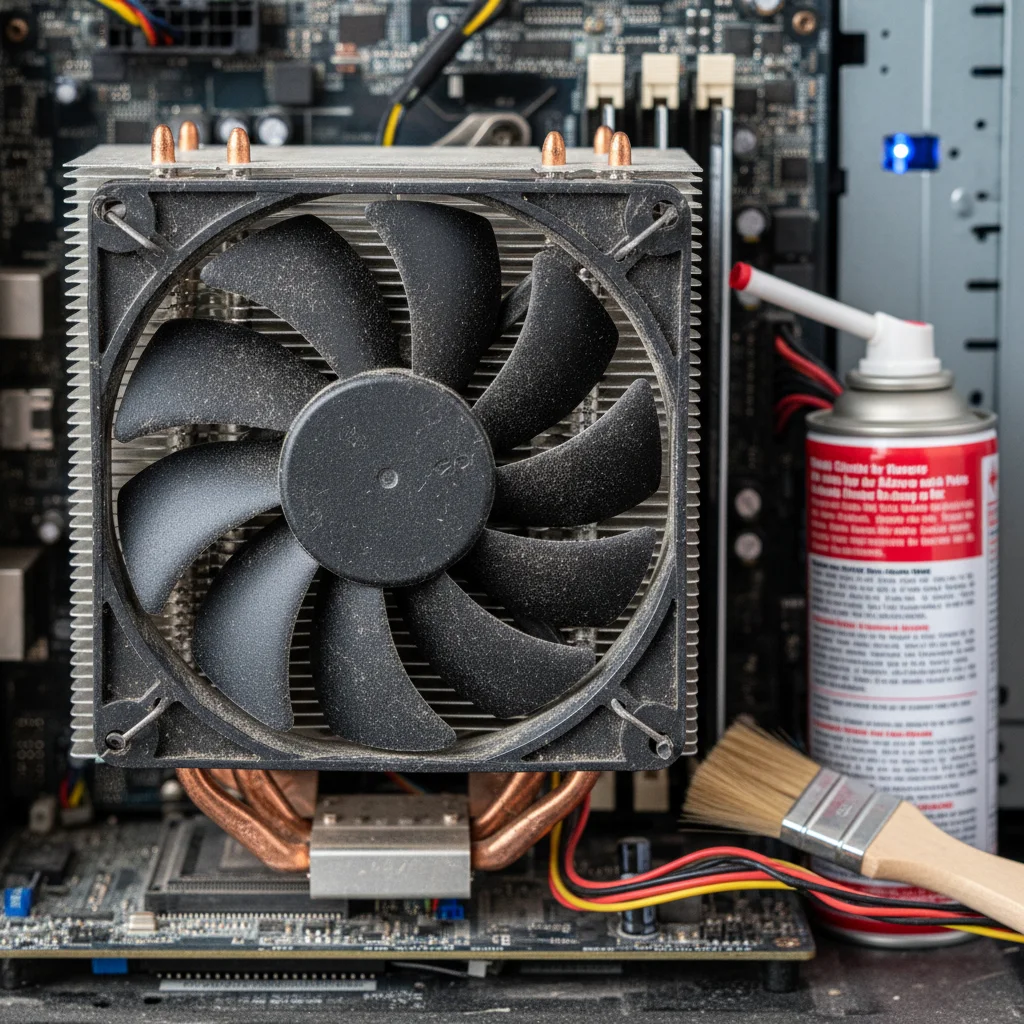
Dust buildup is a silent killer for electronics, causing overheating and reduced performance. This is a critical step in your physical computer maintenance checklist.
- Desktop PC: With the computer turned off and unplugged, use a can of compressed air to blow dust out of all vents, fan grilles, and ports. For internal cleaning, you might need to open the case (if comfortable doing so) and carefully blast dust from CPU heatsinks, GPU fans, and power supply. Hold fans in place while blowing to prevent over-spinning.
- Laptop: Use compressed air on all vents and ports. Avoid blowing directly into the keyboard as it can push dust further inside.
- Safety First: Always unplug your computer before performing any physical cleaning, especially if opening the case.
15. Check Cable Connections
Loose cables can cause intermittent issues or even prevent your computer from booting. A quick check can save you a lot of troubleshooting time.
- Ensure all power cables, display cables (HDMI, DisplayPort), USB cables, and network cables are securely plugged in at both ends.
Part 4: Advanced Maintenance & Monitoring (Quarterly/Annually)
While the above steps cover monthly essentials, some tasks on your computer maintenance checklist don’t need to be done as frequently but are still important.
16. Monitor Hard Drive Health
Modern operating systems and third-party tools can monitor the S.M.A.R.T. (Self-Monitoring, Analysis and Reporting Technology) status of your hard drives. This can give you an early warning if a drive is failing.
- Windows: Use tools like CrystalDiskInfo (free) or check the Event Viewer for disk errors.
- macOS: Disk Utility can report basic drive health. Third-party tools like DriveDx offer more detailed S.M.A.R.T. monitoring.
17. Test Your Backup Strategy
A backup is only good if you can restore from it. Periodically test your backup process by restoring a few files to ensure everything is working as expected. This is a critical, yet often overlooked, part of your computer maintenance checklist.
18. Reinstall Operating System (If Necessary)
This is a last resort for severely bogged-down systems that haven’t responded to other optimization efforts. A fresh OS installation can make your computer feel brand new, but it’s a significant undertaking.
- Only consider this if your computer is consistently slow, unstable, or plagued by persistent issues.
- Ensure you have backed up ALL your data and have all necessary software licenses and installation media.
19. Clean Up Bloatware (Annually)
Some manufacturers pre-install unnecessary software (bloatware) that can consume resources. Periodically review and remove these if they persist.
Establishing Your Maintenance Routine
Consistency is key when it comes to your computer maintenance checklist. Here are some tips for establishing a successful routine:
- Schedule It: Set a recurring reminder on your calendar for the first or last weekend of each month.
- Break It Down: You don’t have to do everything at once. Dedicate 15-30 minutes each week to a few items on the checklist, or set aside an hour once a month.
- Gather Your Tools: Have a can of compressed air, microfiber cloths, and isopropyl alcohol readily available.
- Educate Yourself: Understand what each step does. The more you know, the better you can troubleshoot and maintain your system.
- Be Patient: Some tasks, like a full system scan or backup, can take time. Plan accordingly.
Common Pitfalls to Avoid
While following your computer maintenance checklist, be mindful of these common mistakes:
- Ignoring Updates: Delaying updates for too long leaves you vulnerable to security risks.
- Over-Cleaning: Using harsh chemicals or abrasive materials on your computer can cause damage. Stick to recommended cleaning supplies.
- Not Backing Up: This is the most catastrophic mistake. Assume your hard drive will fail eventually.
- Downloading from Unofficial Sources: Always get software and drivers from official websites to avoid malware.
- Disabling Essential Services: Be cautious when disabling startup programs or system services; if you’re unsure, leave it alone or research it thoroughly.
Conclusion
Your computer is an investment, and like any investment, it thrives with proper care. By consistently following this comprehensive computer maintenance checklist, you’ll not only enjoy a faster, more reliable, and more secure computing experience but also significantly extend the life of your device. Make these steps a regular habit, and you’ll reap the benefits of a well-maintained machine, allowing you to focus on productivity, creativity, and enjoyment without the frustration of technical hiccups. Start your monthly maintenance routine today and experience the difference!