Master Your Home Network: Wi-Fi Optimization for Speed & Security in 2026
Master Your Home Network: Wi-Fi Optimization for Speed & Security in 2026
In an increasingly connected world, a robust and secure Wi-Fi network is no longer a luxury; it’s a fundamental necessity. From streaming 4K content and engaging in seamless video calls to powering smart home devices and working remotely, our daily lives revolve around a reliable internet connection. Yet, many users find themselves grappling with slow speeds, dropped connections, and nagging security concerns. As we look towards 2026, the demands on our home networks will only intensify, making proactive Wi-Fi Optimization Guide essential.
This comprehensive Wi-Fi Optimization Guide is designed to empower you with the knowledge and tools to transform your sluggish, vulnerable network into a high-performance, fortress-like system. We’ll delve into five critical steps, covering everything from strategic router placement to advanced security protocols, ensuring your Wi-Fi is not just fast, but also resilient against emerging threats. Whether you’re a tech novice or a seasoned enthusiast, these actionable strategies will help you achieve unparalleled speed, coverage, and peace of mind.
Forget the frustration of buffering videos and lagging online games. It’s time to take control of your digital environment. Let’s embark on this journey to optimize your Wi-Fi network for the demands of today and the innovations of tomorrow.
Step 1: Strategic Router Placement and Hardware Upgrade for Optimal Signal
The foundation of any high-performing Wi-Fi network begins with its physical setup. Many users simply plug in their router wherever it’s convenient, without considering the profound impact placement has on signal strength and coverage. This initial step in our Wi-Fi Optimization Guide is crucial for maximizing your network’s potential.
The Golden Rules of Router Placement:
- Central Location: Wi-Fi signals radiate outwards. Placing your router in the most central location of your home ensures a more even distribution of the signal to all corners. Avoid tucking it away in a corner or closet.
- Elevate It: Signals travel better downwards. Position your router on a higher shelf or desk, rather than on the floor. This helps the signal clear common obstructions like furniture.
- Avoid Obstructions: Walls, especially those made of brick or concrete, and large metal objects (like refrigerators or filing cabinets) are notorious signal blockers. Keep your router away from these obstacles.
- Minimize Interference: Other electronic devices operating on similar frequencies (2.4 GHz) can cause significant interference. Cordless phones, microwaves, baby monitors, and even some smart home devices can degrade your Wi-Fi performance. Maintain a reasonable distance between your router and these appliances.
When to Consider a Hardware Upgrade:
Even with perfect placement, an outdated router can be a bottleneck. Technology evolves rapidly, and routers from a few years ago might not support the latest Wi-Fi standards (like Wi-Fi 6/802.11ax or the upcoming Wi-Fi 6E/802.11be). An upgrade can dramatically improve your network’s speed, efficiency, and capacity to handle multiple devices.
- Wi-Fi 6 (802.11ax): This standard offers significant improvements in speed, efficiency, and capacity, especially in environments with many connected devices. It’s designed to handle the increasing demands of smart homes and multiple users.
- Mesh Wi-Fi Systems: For larger homes or those with dead zones, a mesh Wi-Fi system is a game-changer. Instead of a single router, mesh systems use multiple nodes placed throughout your home to create a seamless, whole-home Wi-Fi network, eliminating signal drop-offs.
- Tri-Band Routers: These routers offer an additional 5 GHz band, providing more bandwidth and reducing congestion, particularly useful for high-demand activities like gaming and 4K streaming.
Investing in a modern router or a mesh system, combined with optimal placement, sets a strong foundation for the rest of your Wi-Fi Optimization Guide efforts. It’s the first and most impactful step towards a faster, more reliable connection.
Step 2: Optimize Router Settings and Firmware for Peak Performance
Once your hardware is optimally placed, the next critical step in our Wi-Fi Optimization Guide is to fine-tune your router’s internal settings. Many routers come with default configurations that are far from ideal for peak performance. Accessing your router’s administrative interface will open up a world of optimization possibilities.
Accessing Your Router’s Admin Panel:
Typically, you can access your router’s settings by typing its IP address (e.g., 192.168.1.1 or 192.168.0.1) into your web browser. The default username and password are often printed on a sticker on the router itself, or can be found in the manual. If you haven’t changed them, do so immediately for security reasons.
Key Settings to Adjust:
-
Update Firmware: This is paramount. Router manufacturers frequently release firmware updates to fix bugs, improve performance, and patch security vulnerabilities. Always keep your router’s firmware up to date. This is often an automatic process, but sometimes requires manual download and installation.
-
Change Wi-Fi Channel: Wi-Fi networks operate on specific channels. If your neighbors are using the same channel, it can lead to significant interference and slow speeds. Use a Wi-Fi analyzer app (available for smartphones and computers) to identify the least congested channels in your area. For 2.4 GHz, channels 1, 6, and 11 are non-overlapping and generally recommended. For 5 GHz, there are more channels, and interference is less common, but it’s still worth checking.
-
Utilize Both 2.4 GHz and 5 GHz Bands (Band Steering): Most modern routers are dual-band, supporting both 2.4 GHz and 5 GHz frequencies. The 2.4 GHz band offers wider coverage and better penetration through walls but is slower and more prone to interference. The 5 GHz band provides faster speeds and lower latency but has a shorter range and is more easily obstructed. If your router supports band steering (also known as smart connect), enable it. This feature automatically directs devices to the most appropriate band. If not, consider giving each band a separate SSID (network name) and manually connect devices:
- 2.4 GHz: Best for older devices, devices further away from the router, and smart home gadgets that don’t require high bandwidth.
- 5 GHz: Ideal for devices that need high speed and low latency, such as gaming consoles, streaming devices, and modern laptops/smartphones, especially when close to the router.
-
Quality of Service (QoS): QoS allows you to prioritize certain types of network traffic. If you frequently stream video or play online games, you can configure QoS to give these activities preference over less time-sensitive tasks like file downloads. This ensures a smoother experience for your most critical applications.
-
Transmit Power: Some routers allow you to adjust the transmit power. While increasing it might extend range, it can also lead to more interference. Experiment cautiously. Often, leaving it at default or slightly below is optimal, especially if you have a mesh system.
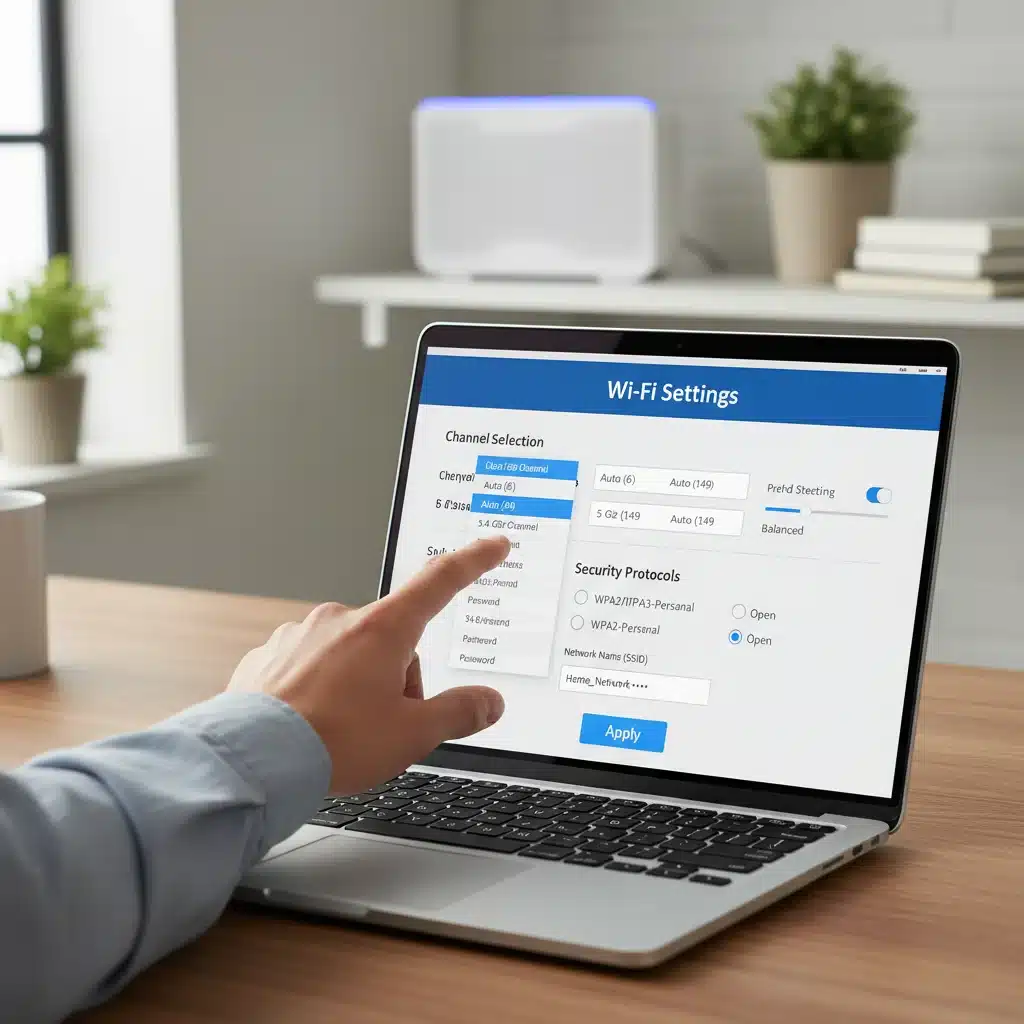
By meticulously configuring these settings, you can significantly enhance your network’s efficiency and responsiveness, making this step a cornerstone of effective Wi-Fi Optimization Guide.
Step 3: Implement Strong Security Protocols and Practices
A fast Wi-Fi network is only truly useful if it’s secure. In 2026, cyber threats are more sophisticated than ever, making robust security an indispensable part of any Wi-Fi Optimization Guide. Protecting your network safeguards your personal data, prevents unauthorized access, and maintains your internet speed.
Essential Security Measures:
-
Strong Passwords and Encryption:
- Wi-Fi Password: Your Wi-Fi password (WPA2/WPA3 passphrase) should be long, complex, and unique. Avoid common phrases or personal information. A strong password combines uppercase and lowercase letters, numbers, and symbols.
- Router Admin Password: Change the default administrative password for your router immediately. This is separate from your Wi-Fi password and is crucial for preventing unauthorized access to your router’s settings.
- Encryption Standard: Always use WPA3 if your router and devices support it. WPA3 offers significantly stronger encryption than WPA2, providing enhanced protection against brute-force attacks and making it much harder for unauthorized users to eavesdrop on your traffic. If WPA3 isn’t an option, ensure you’re using WPA2-AES (not WPA2-TKIP, which is less secure).
-
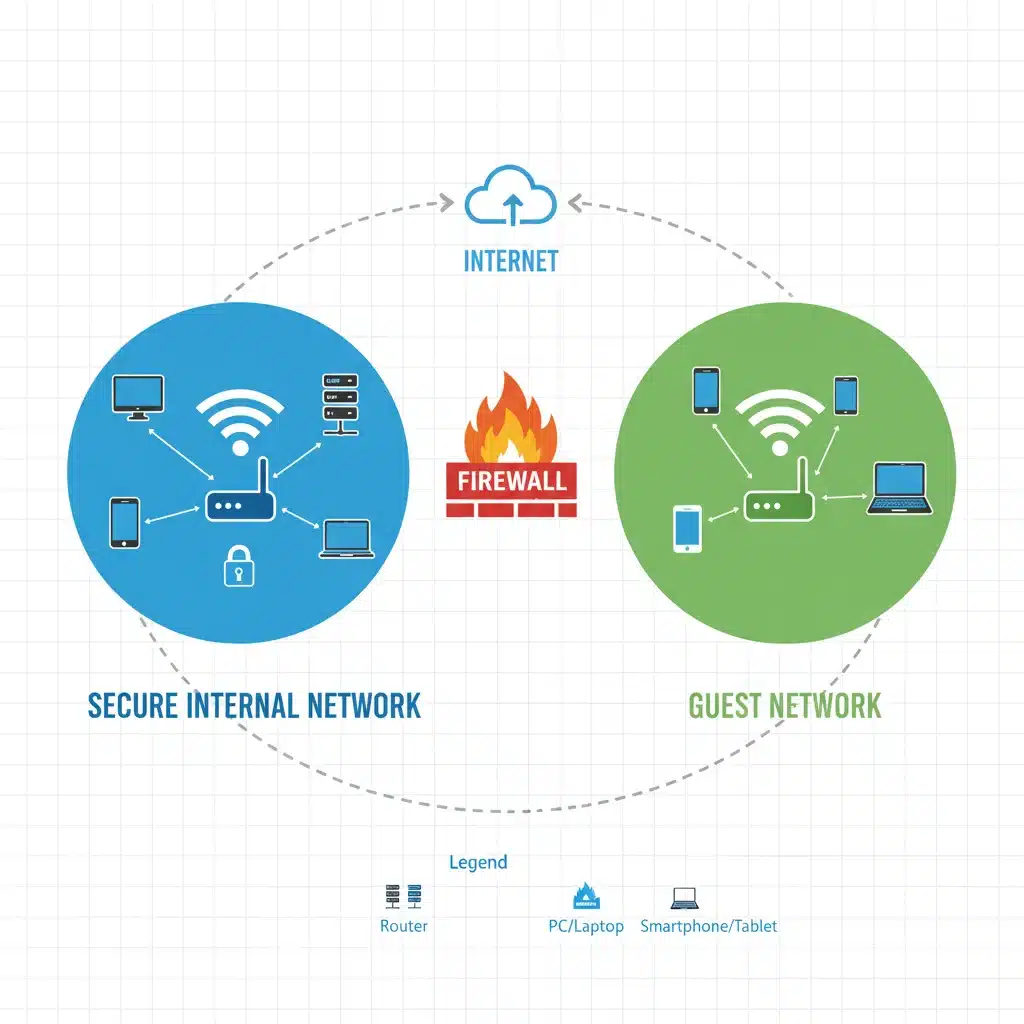
Enable a Guest Network: This is a simple yet highly effective security practice. A guest network allows visitors to access the internet without having access to your primary network or connected devices (like printers, smart TVs, or network-attached storage). It acts as an isolated sandbox, preventing potential threats from guest devices from affecting your main network. Most modern routers offer this feature, often with options for time limits or bandwidth restrictions.
-
Disable WPS (Wi-Fi Protected Setup): While convenient for quickly connecting devices, WPS has known security vulnerabilities that can be exploited to gain access to your network. It’s generally recommended to disable WPS in your router settings and manually connect devices using your Wi-Fi password.
-
Firewall Configuration: Your router has a built-in firewall. Ensure it’s enabled and configured to block unsolicited incoming connections. While advanced firewall settings can be complex, ensuring the basic NAT (Network Address Translation) firewall is active provides a good layer of protection.
-
Regular Security Audits: Periodically review your connected devices list in your router’s admin panel. If you see any unfamiliar devices, investigate immediately. Consider using network scanning tools to identify open ports or potential vulnerabilities.
By diligently applying these security measures, you’re not just protecting your data; you’re also ensuring the integrity and reliability of your network, a vital component of this Wi-Fi Optimization Guide.
Step 4: Minimize Interference and Optimize Client Devices
Even with a perfectly configured router, external factors and the settings on your client devices can impact your Wi-Fi experience. This step in our Wi-Fi Optimization Guide focuses on mitigating these issues to ensure every device gets the best possible connection.
Dealing with Interference:
-
Environmental Factors: As mentioned in Step 1, devices like microwaves, cordless phones, and Bluetooth devices can interfere with the 2.4 GHz band. Move these devices away from your router or consider using the 5 GHz band for critical devices.
-
Neighboring Networks: In densely populated areas, your neighbors’ Wi-Fi networks can cause significant interference. This is where changing your Wi-Fi channel (as discussed in Step 2) becomes crucial. Use a Wi-Fi analyzer to find the least congested channels.
-
Physical Obstructions: Large metal objects, concrete walls, and even water (like a large fish tank) can absorb or reflect Wi-Fi signals. Re-evaluating router placement or using Wi-Fi extenders/mesh nodes can help overcome these physical barriers.
Optimizing Your Client Devices:
The speed and stability of your Wi-Fi connection aren’t solely dependent on your router; your connected devices also play a significant role. Ensure they are also optimized:
-
Keep Device Drivers Updated: The Wi-Fi adapter drivers on your laptops, desktops, and even some smart devices need to be kept up-to-date. Outdated drivers can lead to compatibility issues, slower speeds, and dropped connections. Check your device manufacturer’s website for the latest drivers.
-
Utilize Ethernet When Possible: For stationary devices that demand high bandwidth and low latency (e.g., desktop computers, gaming consoles, smart TVs, network-attached storage), a direct Ethernet connection is always superior to Wi-Fi. It eliminates wireless interference, offers maximum speed, and frees up Wi-Fi bandwidth for truly wireless devices.
-
Check Device Wi-Fi Standards: Ensure your devices support the latest Wi-Fi standards (Wi-Fi 5/802.11ac or Wi-Fi 6/802.11ax) to take full advantage of your modern router. An older device with only Wi-Fi 4 (802.11n) will limit your speeds, even if your router is Wi-Fi 6.
-
Disable Unnecessary Background Apps: On your computers and smartphones, background applications can consume significant bandwidth, even when you’re not actively using them. Close or restrict background data usage for apps that aren’t critical.
-
Clear Browser Cache and DNS Cache: While not directly related to Wi-Fi signal, a cluttered browser or DNS cache can slow down your perceived internet speed. Regularly clearing these caches can help. For DNS, open Command Prompt (Windows) or Terminal (macOS) and type
ipconfig /flushdns(Windows) orsudo dscacheutil -flushcache; sudo killall -HUP mDNSResponder(macOS).
By addressing these client-side and environmental factors, you ensure that your Wi-Fi Optimization Guide efforts translate into a tangible improvement in performance across all your devices.
Step 5: Advanced Techniques and Ongoing Maintenance for 2026 and Beyond
To truly future-proof your network and maintain optimal performance, this final step in our Wi-Fi Optimization Guide introduces advanced techniques and emphasizes the importance of continuous monitoring and maintenance.
Advanced Optimization Techniques:
-
Consider Powerline Adapters or MoCA: If Wi-Fi extenders or mesh systems aren’t cutting it, or if you need a wired connection where running Ethernet cables is impractical, consider powerline adapters. These devices use your home’s electrical wiring to extend your network. MoCA (Multimedia over Coax Alliance) adapters use existing coaxial cable wiring to create a high-speed wired backbone, ideal for homes with coax outlets in multiple rooms.
-
Adjust Transmit Power (Carefully): Some advanced routers allow you to fine-tune transmit power. While increasing it might extend range, it can also lead to more interference in a congested environment. Lowering it can reduce interference and improve stability in very close proximity. Experiment with caution.
-
Implement a DNS Filter: Using a custom DNS service like Cloudflare (1.1.1.1), Google DNS (8.8.8.8), or OpenDNS can often improve browsing speed and sometimes offer content filtering and security benefits, blocking access to known malicious sites.
-
VPN Integration (Router Level): For enhanced privacy and security for all devices on your network, consider a router that supports VPN client functionality. This allows all traffic passing through the router to be encrypted and routed through a VPN service, protecting every connected device automatically.
-
Subnetting for Large Networks: In very large homes or small businesses with many devices, subnetting can help segment your network, reducing broadcast traffic and improving efficiency. This is an advanced topic and usually requires more sophisticated networking equipment.
Ongoing Maintenance and Monitoring:
-
Regular Speed Tests: Periodically run speed tests (e.g., Ookla Speedtest, Fast.com) from various locations in your home and on different devices. This helps you identify areas of weak performance and track the impact of your optimization efforts.
-
Monitor Connected Devices: Regularly check your router’s admin panel for a list of connected devices. This helps you spot unauthorized users or identify devices that might be consuming excessive bandwidth.
-
Review Router Logs: Your router keeps logs of activity. While often technical, these logs can sometimes reveal connection issues, failed login attempts, or other anomalies that warrant investigation.
-
Reboot Your Router Periodically: Just like any computer, routers can benefit from a periodic reboot. This clears the router’s memory, refreshes its connections, and can resolve minor performance glitches. A weekly or bi-weekly reboot is often sufficient.
-
Stay Informed: Keep an eye on new Wi-Fi standards (like Wi-Fi 7/802.11be), security threats, and router firmware updates. The digital landscape is constantly changing, and staying informed is key to maintaining an optimized and secure network.
By consistently applying these advanced techniques and committing to ongoing maintenance, you’ll ensure your Wi-Fi network remains a high-speed, secure, and reliable backbone for your digital life, ready to meet the challenges and opportunities of 2026 and beyond. This comprehensive Wi-Fi Optimization Guide provides the roadmap to achieve exactly that.
Conclusion: Your Optimized Wi-Fi Network Awaits
The journey to a perfectly optimized Wi-Fi network might seem daunting at first, but by systematically following this 5-step Wi-Fi Optimization Guide, you can achieve remarkable improvements in both speed and security. We’ve covered everything from the foundational aspects of router placement and hardware selection to the intricate details of firmware updates, channel optimization, and robust security protocols. We’ve also highlighted the importance of minimizing interference, optimizing client devices, and embracing advanced techniques for long-term performance.
In a world where our reliance on digital connectivity continues to grow, a fast, reliable, and secure Wi-Fi network is paramount. It underpins everything from remote work and online education to entertainment and smart home automation. By investing time and effort into these optimization strategies, you’re not just fixing a slow connection; you’re enhancing your entire digital experience and safeguarding your personal information against evolving threats.
Remember, Wi-Fi optimization isn’t a one-time task. It’s an ongoing process of monitoring, adjusting, and adapting to new technologies and environmental changes. Make it a habit to regularly review your router settings, update firmware, and check for new interference sources. With this proactive approach, your home network will not only meet the demands of 2026 but will also be prepared for whatever technological advancements the future holds.
Take control of your Wi-Fi destiny. Implement this Wi-Fi Optimization Guide today and enjoy the benefits of a truly high-performing and secure home network. Say goodbye to buffering and hello to seamless connectivity!