
How to Optimize Your PC for Peak Performance in 2026: A Comprehensive 10-Point Checklist
In the rapidly evolving world of technology, keeping your personal computer running at its absolute best is more crucial than ever. As we step into 2026, the demands on our systems continue to grow, whether for high-fidelity gaming, complex professional applications, or seamless multimedia consumption. A sluggish PC isn’t just an inconvenience; it can significantly hinder productivity, creativity, and enjoyment. This comprehensive guide is designed to help you optimize PC performance, ensuring your machine is not only meeting but exceeding your expectations. We’ll walk you through a 10-point checklist, covering everything from fundamental maintenance to advanced tweaks, all aimed at unleashing your PC’s full potential.
The concept of PC optimization has changed considerably over the years. What worked five years ago might not be as effective today, given advancements in hardware, operating systems, and software. Our focus for 2026 is on a holistic approach, addressing both hardware and software aspects, and providing actionable steps that anyone can follow. By the end of this article, you’ll have a clear roadmap to a faster, more responsive, and more reliable computer.
Understanding the Need to Optimize PC Performance in 2026
Why is it so important to continually optimize PC performance? The reasons are multifaceted. Firstly, software applications are becoming increasingly resource-intensive. Modern games push the boundaries of graphics and processing power, while professional tools like video editors and CAD software demand robust systems. Secondly, operating systems, while more efficient than ever, still accumulate digital clutter over time, leading to slowdowns. Thirdly, hardware components, though durable, require proper care and management to maintain their efficiency. Ignoring these aspects can lead to frustrating lags, crashes, and a diminished user experience.
Think of your PC as a high-performance vehicle. Just like a car needs regular oil changes, tire rotations, and engine tuning to run optimally, your computer requires consistent maintenance and optimization to deliver its best. Our goal is to equip you with the knowledge and tools to perform this ‘tuning’ effectively, ensuring your PC remains a powerhouse throughout 2026 and beyond. Let’s dive into the essential steps.
1. Keep Your Operating System and Drivers Up-to-Date
One of the most fundamental steps to optimize PC performance is ensuring your operating system (OS) and all drivers are current. Software developers and hardware manufacturers constantly release updates that include performance enhancements, bug fixes, and security patches. Neglecting these updates can leave your system vulnerable and prevent it from leveraging the latest optimizations.
Operating System Updates: The Foundation of Performance
Whether you’re running Windows, macOS, or a Linux distribution, regularly checking for and installing OS updates is paramount. These updates often contain critical performance improvements that can significantly impact your system’s speed and stability. For Windows users, this means utilizing Windows Update. For macOS users, it’s through the App Store or System Settings. Always restart your computer after major updates to ensure all changes are applied correctly.
Driver Updates: Unleashing Hardware Potential
Drivers are software programs that allow your operating system to communicate with your hardware components (graphics card, sound card, network adapter, etc.). Outdated drivers can lead to compatibility issues, reduced performance, and even system crashes. Key drivers to focus on include:
- Graphics Card Drivers: Especially crucial for gamers and those using graphic-intensive applications. NVIDIA, AMD, and Intel frequently release new drivers that offer significant performance boosts for the latest games and software.
- Chipset Drivers: These drivers manage communication between your CPU and other components. Keeping them updated ensures optimal data flow.
- Storage Controller Drivers: Important for SSDs and HDDs to ensure efficient data read/write speeds.
You can typically update drivers through your device manager (Windows), dedicated manufacturer software (e.g., NVIDIA GeForce Experience, AMD Radeon Software), or by visiting the manufacturer’s website directly. Automated driver update tools exist, but always exercise caution and ensure they are from reputable sources to avoid installing malicious software.
2. Declutter Your Digital Workspace: Uninstall Unused Programs
Over time, we tend to install numerous applications that we might use once or twice and then forget about. These unused programs consume valuable disk space, and some might even run in the background, hogging system resources. To effectively optimize PC performance, a digital declutter is essential.
Go through your installed programs list and uninstall anything you no longer need or use. Be ruthless! If you haven’t used an application in months, it’s likely safe to remove it. For Windows users, this can be done via ‘Apps & Features’ in Settings or ‘Programs and Features’ in the Control Panel. macOS users can simply drag applications from the Applications folder to the Trash.
Pay special attention to:
- Bloatware: Pre-installed software that comes with new PCs. Many of these are unnecessary and can be removed.
- Trial Software: Programs you installed for a trial period and never fully utilized.
- Duplicate Programs: Multiple applications that perform the same function (e.g., several PDF readers or media players).
Freeing up disk space and reducing the number of background processes will noticeably improve your PC’s responsiveness and startup times.
3. Optimize Startup Programs: Faster Boot Times
A common culprit for slow boot times and general system sluggishness is an excessive number of programs launching automatically when your PC starts up. Many applications configure themselves to run at startup by default, even if they don’t need to. Managing these startup programs is a quick win for anyone looking to optimize PC performance.
In Windows, you can access startup programs via the Task Manager (Ctrl+Shift+Esc, then go to the ‘Startup’ tab). Here, you can see all applications configured to launch with your system and their impact on startup time. Disable any non-essential programs. Be cautious not to disable critical system services, but most third-party applications can be safely disabled from startup if you don’t need them immediately.
For macOS, navigate to ‘Users & Groups’ in System Settings, then ‘Login Items’. You can remove applications from this list that you don’t want starting automatically. A streamlined startup process means your PC is ready to use much faster and has more resources available for the tasks you actually want to perform.
4. Clean Up Your Disk Drives: Free Up Space and Improve Efficiency
Just like uninstalling programs, cleaning up your disk drives is vital for maintaining optimal performance. Full drives, especially your primary system drive (C: drive), can significantly slow down your PC. Windows and macOS both offer built-in tools to help with this.
Disk Cleanup (Windows)
The Disk Cleanup utility in Windows can identify and remove various types of unnecessary files, including temporary files, system error memory dumps, Recycle Bin contents, and old Windows update files. To access it, type ‘Disk Cleanup’ in the Windows search bar. Select the drive you want to clean, and then check the boxes for the file types you want to remove. Remember to click ‘Clean up system files’ for a more thorough scan.
Optimizing Drives (Windows)
For traditional Hard Disk Drives (HDDs), defragmentation can improve performance by reorganizing fragmented data. However, never defragment a Solid State Drive (SSD), as it’s unnecessary and can reduce its lifespan. Windows’ ‘Optimize Drives’ tool (search for it in Windows) can analyze your drives and perform the appropriate optimization (defragmentation for HDDs, TRIM command for SSDs). Ensure your SSDs are being properly ‘trimmed’ to maintain their write performance.
Manage Storage (macOS)
macOS offers a ‘Manage Storage’ utility (found under ‘About This Mac’ > ‘Storage’) that provides recommendations for freeing up space, such as storing files in iCloud, optimizing storage by removing watched movies and TV shows, and emptying the Trash automatically. Regularly review your Downloads folder and delete large, unnecessary files.
5. Invest in an SSD (If You Haven’t Already)
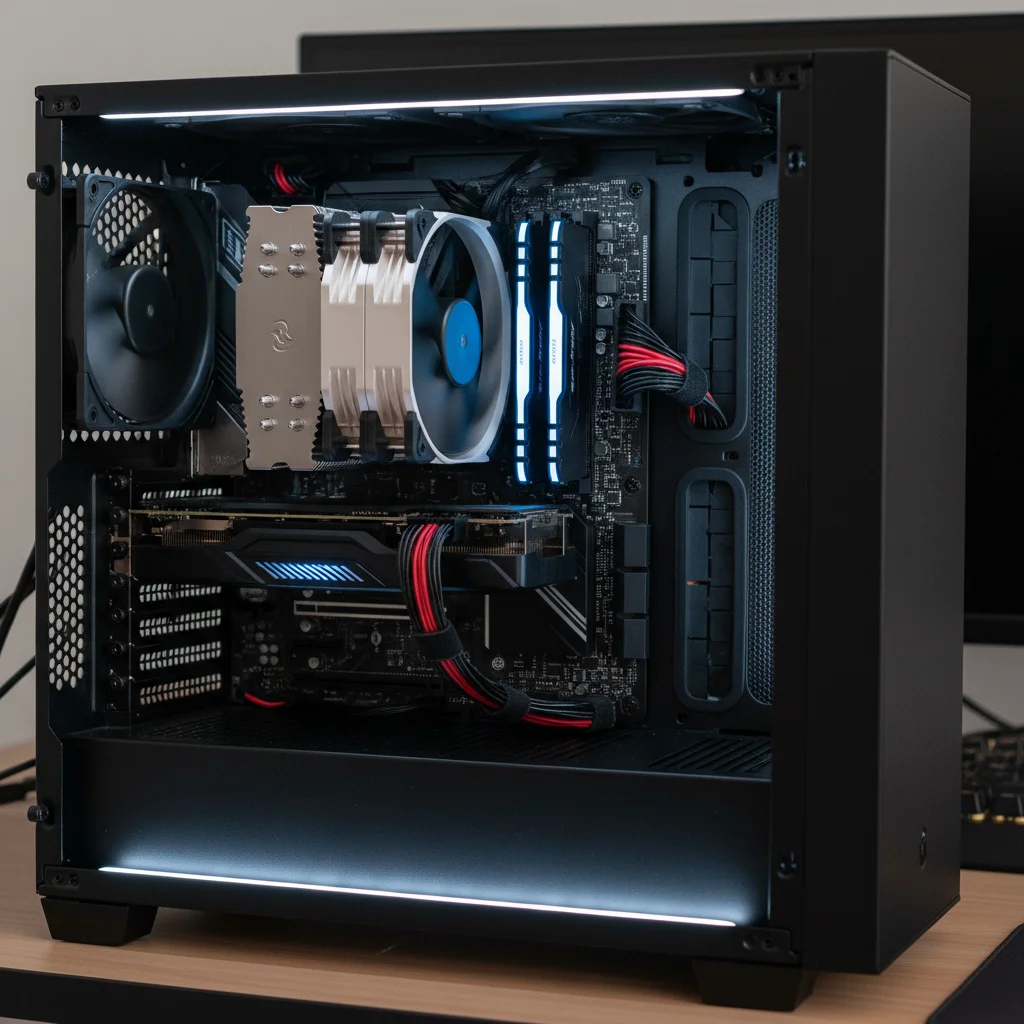
If your PC is still running on a traditional Hard Disk Drive (HDD) as its primary boot drive, upgrading to a Solid State Drive (SSD) is arguably the single most impactful step you can take to optimize PC performance. SSDs offer dramatically faster boot times, application loading, and overall system responsiveness compared to HDDs.
The difference is night and day. Modern SSDs connect via NVMe (Non-Volatile Memory Express) and offer speeds many times faster than SATA SSDs, which are already significantly faster than HDDs. If you’re using an older SATA SSD, consider upgrading to an NVMe SSD if your motherboard supports it. This upgrade alone can make an old PC feel brand new, breathing years of extra life into it.
While HDDs still offer a lower cost per gigabyte for mass storage, an SSD for your operating system and frequently used applications is a non-negotiable for peak performance in 2026.
6. Manage Background Processes and Services
Even after optimizing startup programs, many applications and services continue to run in the background, consuming CPU, RAM, and disk I/O. To further optimize PC performance, it’s crucial to manage these background processes.
In Windows, the Task Manager (Ctrl+Shift+Esc) is your best friend. Under the ‘Processes’ tab, you can see all running applications and background processes, along with their resource consumption. Identify resource hogs and close applications you’re not actively using. Be cautious when ending processes; some are critical for system stability. If unsure, search online before ending a process.
For macOS, Activity Monitor (found in Utilities) provides similar functionality, allowing you to view and manage CPU, Memory, Energy, Disk, and Network usage. Quit applications that are consuming excessive resources if they are not essential.
Additionally, review your system’s ‘Services’ (search for ‘services.msc’ in Windows). Many services are set to ‘Automatic’ but might not be essential for your daily workflow. Changing non-critical services to ‘Manual’ or ‘Disabled’ can free up resources, but this is an advanced step that requires careful research to avoid system instability.
7. Optimize Power Settings for Performance
While power-saving modes are great for laptops to extend battery life, they can throttle your PC’s performance on desktops or when plugged in. To truly optimize PC performance, ensure your power settings are configured for maximum performance.
Windows Power Plans
In Windows, go to ‘Power & sleep settings’ > ‘Additional power settings’. Here, you’ll typically find options like ‘Balanced’, ‘Power saver’, and ‘High performance’. Select ‘High performance’ or ‘Ultimate Performance’ (if available) to ensure your CPU and other components are not being artificially limited. You might also need to click ‘Change plan settings’ and then ‘Change advanced power settings’ to fine-tune specific parameters, such as processor power management.
macOS Energy Saver
For macOS, in ‘Energy Saver’ settings (or ‘Battery’ in newer versions), ensure that options like ‘Automatic graphics switching’ are off if you prioritize performance over battery life, and that your display is set to not sleep too quickly when plugged into power. While macOS generally manages power more efficiently, ensuring it’s not needlessly throttling performance is key for resource-intensive tasks.
8. Keep Your PC Physically Clean: The Overlooked Essential
Software optimization is crucial, but neglecting the physical health of your PC can undo all your digital efforts. Dust, pet hair, and other debris can accumulate inside your computer, especially in fans and heatsinks. This accumulation acts as an insulator, trapping heat and causing components to overheat. When components get too hot, they ‘throttle’ (reduce their performance) to prevent damage, leading to significant slowdowns. This is a critical step to optimize PC performance.
Regular Cleaning Schedule
Aim to clean your PC internally every 3-6 months, depending on your environment. Here’s how:
- Turn Off and Unplug: Always ensure your PC is completely off and unplugged from the wall.
- Open the Case: Carefully open your PC’s side panel.
- Use Compressed Air: Use cans of compressed air (available at electronics stores) to blow dust out of fans (CPU cooler, GPU fans, case fans) and heatsinks. Hold the fans in place while blowing to prevent over-spinning and potential damage.
- Wipe Surfaces: Use a microfiber cloth to gently wipe down larger components and the inside of the case.
- Check Cables: Ensure all cables are securely connected and not obstructing airflow.
A clean PC runs cooler, and cooler components perform better and last longer. Don’t underestimate the power of physical maintenance.
9. Maintain a Healthy Browser: Extensions and Cache Management
Your web browser is likely one of the most used applications on your PC, and it can be a major source of performance issues if not properly maintained. Bloated browsers with too many extensions and accumulated cache can significantly slow down your internet experience and overall system responsiveness. This is a often forgotten aspect to optimize PC performance.
Manage Browser Extensions
Go through your browser’s extension list and disable or remove any extensions you don’t frequently use. Many extensions consume RAM and CPU cycles, even when not actively being used. Be particularly wary of extensions that track your browsing activity or inject ads, as these can be major performance drains.
Clear Browser Cache and Cookies
Regularly clearing your browser’s cache and cookies can resolve loading issues, improve privacy, and free up some disk space. While cache is designed to speed up loading times for frequently visited sites, an overly large or corrupted cache can have the opposite effect. Most browsers have an option to clear browsing data in their settings.
Consider a Lightweight Browser
If you’re a heavy browser user and find mainstream browsers like Chrome or Firefox too resource-intensive, consider trying a more lightweight alternative like Microsoft Edge (which has become quite efficient) or Brave, which is known for its built-in ad-blocker and performance focus.
10. Consider a System Reset or Reinstallation (The Ultimate Optimization)
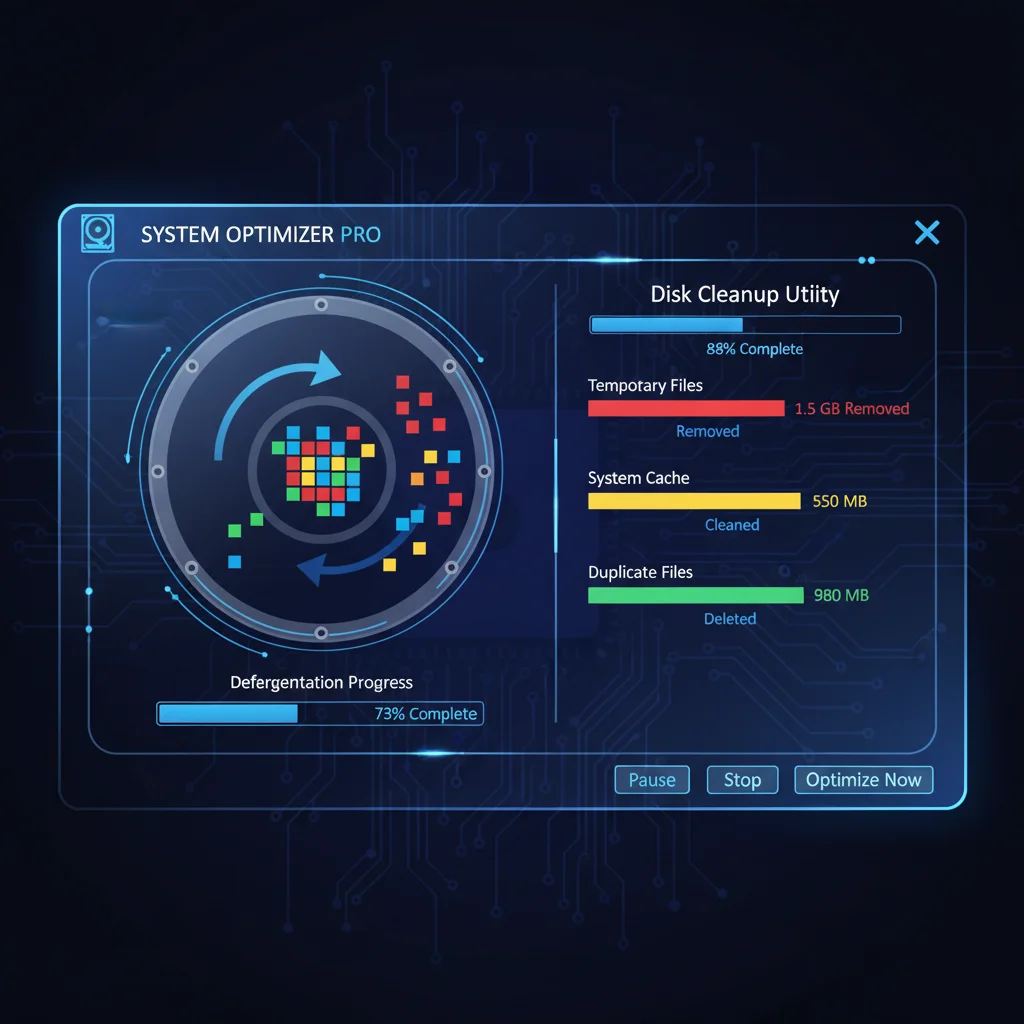
If you’ve tried all the above steps and your PC still feels sluggish, or if you’re experiencing persistent issues, a complete system reset or clean reinstallation of your operating system can be the ultimate solution to optimize PC performance. This is often referred to as ‘starting fresh’ and can eliminate years of accumulated digital cruft, corrupted files, and lingering software conflicts.
Windows Reset
Windows offers a ‘Reset this PC’ option (found in Settings > Update & Security > Recovery) that allows you to reinstall Windows while either keeping your personal files or removing everything. Choosing to remove everything and perform a clean installation is the most effective way to get a ‘factory fresh’ system.
macOS Reinstallation
For macOS users, reinstalling the operating system can be done via macOS Recovery. You can erase your startup disk and then reinstall macOS, which will give you a clean slate. Always back up your important files before attempting this!
When to Consider It
While this is a drastic step, it’s incredibly effective. Consider it if:
- Your PC is several years old and has undergone numerous software installations and removals.
- You’re experiencing unexplained crashes or performance drops.
- You suspect malware or deeply embedded software conflicts.
- You want to sell your PC and ensure all your data is gone.
A clean OS installation ensures that your system is running with minimal overhead and only the software you truly need, providing the absolute best foundation for peak performance.
Advanced Tips for Peak PC Performance in 2026
Beyond the core 10 points, here are a few advanced considerations for those looking to squeeze every last drop of performance from their machine and truly optimize PC performance:
- RAM Upgrade: If you frequently multitask or use memory-intensive applications, increasing your RAM (Random Access Memory) can significantly boost performance. Check your motherboard’s specifications for maximum supported RAM and speed.
- Overclocking: For enthusiasts, carefully overclocking your CPU or GPU can provide a noticeable performance gain. This should only be done with proper cooling and knowledge, as it can generate more heat and potentially reduce component lifespan if not done correctly.
- BIOS/UEFI Settings: Explore your BIOS/UEFI settings for options like XMP (Extreme Memory Profile) for RAM, virtualization settings, and fan controls. Ensure XMP is enabled if you have high-speed RAM.
- Network Optimization: Ensure your network drivers are updated, and consider a wired Ethernet connection over Wi-Fi for critical online activities like gaming or video conferencing to reduce latency and improve stability.
- Regular Backups: While not directly a performance tip, regularly backing up your data is crucial. If something goes wrong during optimization or a hardware failure occurs, your data will be safe, allowing you to recover quickly.
Conclusion: A Faster PC is Within Reach
By diligently following this 10-point checklist and incorporating some of the advanced tips, you can significantly optimize PC performance and ensure your system is running at its absolute best in 2026. From keeping your software updated and decluttering your digital space to investing in essential hardware upgrades like SSDs and maintaining physical cleanliness, each step contributes to a faster, more stable, and more enjoyable computing experience.
Remember, PC optimization isn’t a one-time task; it’s an ongoing process. Regular maintenance, vigilance against unnecessary software, and a proactive approach to updates will keep your machine performing like new for years to come. Take control of your PC’s health today and unlock its full potential!