Master Pop-Up & Ad Blocking: Your 2-Minute Browser Configuration Guide

In today’s digital age, the internet has become an indispensable part of our daily lives. From work and education to entertainment and communication, we rely on web browsers for almost everything. However, this convenience often comes with a significant downside: a barrage of intrusive pop-up ads, banners, and auto-playing videos that can disrupt your browsing experience, slow down your computer, and even pose security risks. The constant struggle to block annoying ads is a shared experience for many internet users.
Imagine trying to read an important article, only to have it obscured by a giant pop-up demanding your email address. Or perhaps you’re watching a video, and suddenly, an unskippable ad blares at full volume. These interruptions are not just minor annoyances; they can significantly impact your productivity, increase your frustration, and even consume your mobile data plan unnecessarily. Moreover, some malicious ads can redirect you to phishing sites or install unwanted software, making the ability to effectively block annoying ads a crucial aspect of online safety.
The good news is that you don’t have to tolerate this digital onslaught. With just a few simple adjustments to your browser settings and the right tools, you can reclaim control over your online experience. This comprehensive guide will walk you through the steps to effectively block annoying ads and pop-ups across all major web browsers, transforming your online journey into a smoother, safer, and more enjoyable one. We’ll cover everything from built-in browser features to powerful third-party extensions, ensuring you have all the knowledge needed to create an ad-free digital sanctuary.
Understanding the Problem: Why Ads Are So Annoying (and Persistent)
Before we dive into solutions, let’s briefly understand why ads are such a pervasive issue. Online advertising is the primary revenue stream for many websites, allowing them to offer content and services for free. However, the pursuit of ad revenue has led to increasingly aggressive and intrusive advertising practices. Pop-ups, auto-play videos, interstitial ads (which appear between content pages), and tracking cookies are all designed to grab your attention, often at the expense of user experience.
These ads aren’t just visually disruptive; they can also:
- Slow Down Your Browser: Ads often require loading complex scripts and large image/video files, which consume bandwidth and processing power, leading to slower page load times and a sluggish browsing experience. This is a common complaint for those trying to block annoying ads.
- Consume Data: For users on limited data plans, especially mobile users, loading numerous ads can quickly eat into their monthly allowance, leading to unexpected charges.
- Compromise Privacy: Many ads use tracking technologies to collect data about your browsing habits, interests, and even location. This data is then used to deliver targeted ads, raising significant privacy concerns. Effectively blocking ads often means enhancing your online privacy.
- Introduce Malware: Malvertising, where malicious code is embedded within legitimate-looking ads, is a growing threat. Clicking on such an ad can lead to malware infections, phishing scams, or unwanted software installations. Therefore, learning to block annoying ads is also a security measure.
- Distract and Frustrate: The constant visual and auditory interruptions can make it difficult to concentrate, leading to frustration and a diminished overall online experience.
Given these drawbacks, it’s no wonder that users are actively seeking ways to block annoying ads and regain control. Fortunately, there are many effective strategies available, ranging from simple browser settings to advanced ad-blocking extensions.
Browser-Specific Configurations to Block Annoying Ads and Pop-Ups
Most modern web browsers come with built-in features to mitigate some of the most egregious forms of advertising, particularly pop-ups. While these built-in tools might not catch every single ad, they are an excellent first line of defense and require no additional software. Let’s explore how to configure these settings in popular browsers.
Google Chrome: Taming the Ad Beast
Chrome, being the most widely used browser, has several options to help you block annoying ads and pop-ups:
- Pop-up Blocker:
- Open Chrome and click the three vertical dots (menu icon) in the top-right corner.
- Go to ‘Settings’ > ‘Privacy and security’ > ‘Site Settings’.
- Scroll down and click on ‘Pop-ups and redirects’.
- Ensure ‘Blocked (recommended)’ is selected. You can also add specific sites to ‘Allow’ if you trust them and need pop-ups for functionality (e.g., banking sites).
- Ad Blocker (Built-in):
- Chrome has a built-in ad blocker that blocks ads on sites that show ‘abusive’ or ‘disruptive’ ads, as defined by the Coalition for Better Ads.
- To check this, go to ‘Settings’ > ‘Privacy and security’ > ‘Site Settings’.
- Under ‘Content’, find ‘Additional content settings’ and then ‘Ads’.
- Make sure ‘Blocked on sites that show intrusive or misleading ads (recommended)’ is turned on. This feature is designed to filter out the worst offenders, helping to block annoying ads that severely degrade user experience.
- Notifications: Many websites now use push notifications to send you updates, which can quickly become another source of annoyance. To manage these:
- Go to ‘Settings’ > ‘Privacy and security’ > ‘Site Settings’.
- Click on ‘Notifications’.
- Choose ‘Don’t allow sites to send notifications’ or review and remove specific sites from the ‘Allow’ list.
Mozilla Firefox: Privacy-Focused Ad Blocking
Firefox is known for its strong privacy features, which extend to helping you block annoying ads:
- Enhanced Tracking Protection:
- Open Firefox and click the three horizontal lines (menu icon) in the top-right corner.
- Go to ‘Settings’ > ‘Privacy & Security’.
- Under ‘Enhanced Tracking Protection’, you can choose between ‘Standard’, ‘Strict’, or ‘Custom’.
- ‘Standard’ blocks known trackers in private windows and some third-party tracking cookies. ‘Strict’ blocks more trackers and some cookies, but might break some websites. ‘Custom’ allows you to manually select what to block, including trackers, cookies, cryptominers, and fingerprinters. Choosing a stricter setting significantly helps to block annoying ads driven by tracking.
- Pop-up Blocker:
- In the ‘Privacy & Security’ settings, scroll down to the ‘Permissions’ section.
- Ensure the ‘Block pop-up windows’ checkbox is ticked.
- You can click ‘Exceptions…’ to allow pop-ups for specific trusted websites.
Microsoft Edge: A Modern Approach to Ad Management
Microsoft Edge, built on the Chromium engine, shares many similarities with Chrome but also offers its unique privacy features to help block annoying ads:
- Pop-up Blocker:
- Open Edge and click the three horizontal dots (menu icon) in the top-right corner.
- Go to ‘Settings’ > ‘Cookies and site permissions’.
- Scroll down and click on ‘Pop-ups and redirects’.
- Toggle the switch to ‘Blocked (recommended)’. You can also manage ‘Allow’ and ‘Block’ lists for specific sites.
- Tracking Prevention:
- Go to ‘Settings’ > ‘Privacy, search, and services’.
- Under ‘Tracking prevention’, you can choose between ‘Basic’, ‘Balanced’ (recommended), or ‘Strict’.
- ‘Balanced’ blocks trackers from sites you haven’t visited, while ‘Strict’ blocks most trackers from all sites, which can be very effective in helping to block annoying ads that rely on tracking data.
Safari (macOS/iOS): Integrated Ad and Tracking Prevention
Safari on Apple devices offers robust built-in features to protect user privacy and block annoying ads:
- Pop-up Blocker:
- On macOS: Open Safari > ‘Safari’ menu > ‘Preferences’ > ‘Websites’ tab.
- In the sidebar, click ‘Pop-up Windows’.
- For ‘When visiting other websites’, choose ‘Block and Notify’ or ‘Block’. You can also configure settings for individual websites.
- On iOS/iPadOS: Go to ‘Settings’ > ‘Safari’ > turn on ‘Block Pop-ups’.
- Intelligent Tracking Prevention (ITP):
- Safari automatically employs ITP to limit cross-site tracking, which significantly helps to block annoying ads by preventing advertisers from following you across different websites.
- On macOS: Safari > ‘Preferences’ > ‘Privacy’ tab. Ensure ‘Prevent cross-site tracking’ is checked.
- On iOS/iPadOS: Go to ‘Settings’ > ‘Safari’ > turn on ‘Prevent Cross-Site Tracking’.

Beyond Built-in Features: The Power of Ad-Blocking Extensions
While built-in browser settings are a good start, they often don’t catch all types of ads or provide the granular control many users desire. This is where browser extensions come into play. Ad-blocking extensions are powerful tools designed to comprehensively block annoying ads, trackers, and other intrusive elements. Here are some of the most popular and effective options:
1. uBlock Origin
- Why it’s great: uBlock Origin is widely regarded as one of the most efficient and effective ad blockers available. It’s open-source, uses minimal system resources, and offers extensive customization options. It doesn’t just block ads; it also blocks trackers, malware domains, and more.
- Key Features: Lightweight, efficient, customizable filter lists, element picker (to manually block specific elements), anti-malware protection. It’s excellent for those who want to truly block annoying ads without slowing down their system.
- Availability: Chrome, Firefox, Edge, Opera.
2. AdBlock Plus (ABP)
- Why it’s great: AdBlock Plus is one of the oldest and most well-known ad blockers. It’s easy to use and effective at blocking most ads and pop-ups. It operates on a controversial ‘Acceptable Ads’ program, which allows some non-intrusive ads by default, though this can be disabled.
- Key Features: Blocks pop-ups, video ads, banners, and tracking. Customizable filter lists, option to disable ‘Acceptable Ads’. A solid choice for those starting out to block annoying ads.
- Availability: Chrome, Firefox, Edge, Safari, Opera, Android, iOS.
3. AdGuard
- Why it’s great: AdGuard offers both browser extensions and full-fledged system-wide ad blockers (paid software). The browser extension is highly effective at blocking ads, pop-ups, and trackers, and it also includes features like phishing protection and anti-malware.
- Key Features: Comprehensive ad blocking, stealth mode for advanced tracking protection, phishing and malware protection, custom filters. A robust solution to block annoying ads and enhance overall security.
- Availability: Chrome, Firefox, Edge, Safari, Opera (extensions); Windows, macOS, Android, iOS (software).
4. Ghostery
- Why it’s great: While Ghostery also blocks ads, its primary focus is on identifying and blocking trackers. It provides detailed information about the trackers present on each website, giving you more control over your privacy.
- Key Features: Tracker identification and blocking, ad blocking, anti-tracking, analytics insight. Ideal for users who want to understand who is tracking them and actively block annoying ads that rely on tracking.
- Availability: Chrome, Firefox, Edge, Opera, Safari.
How to Install and Configure an Ad-Blocking Extension (General Steps)
The process is generally similar across browsers:
- Visit the Browser’s Extension Store: For Chrome, go to the Chrome Web Store. For Firefox, visit Firefox Add-ons. For Edge, go to the Microsoft Edge Add-ons store.
- Search for the Extension: Type the name of your chosen ad blocker (e.g., “uBlock Origin”) into the search bar.
- Add to Browser: Click on the extension and then click the “Add to [Browser Name]” or “Get” button. Confirm any permissions requests.
- Configure Settings: Once installed, the extension icon will appear in your browser’s toolbar. Click on it to access its settings. Most extensions allow you to:
- Enable/disable blocking for specific sites.
- Add custom filter lists.
- Report problematic ads.
- Adjust blocking aggressiveness.
Advanced Strategies to Block Annoying Ads
For those seeking even more comprehensive protection or a system-wide solution, consider these advanced methods to block annoying ads:
1. DNS-Level Blocking (e.g., Pi-hole, AdGuard DNS)
DNS (Domain Name System) level blocking works by preventing your devices from even connecting to known ad and tracking servers. When your device tries to load an ad, the DNS server redirects the request, effectively blocking the ad before it even reaches your browser. This method is highly effective because it works across all devices on your network (computers, smartphones, smart TVs, etc.) without needing individual browser extensions.
- Pi-hole: A popular open-source solution that you can install on a dedicated device (like a Raspberry Pi) on your home network. It acts as a DNS sinkhole, blocking ads and trackers for all devices connected to your network.
- AdGuard DNS: A free public DNS service (similar to Google DNS or Cloudflare DNS) that automatically blocks ads and trackers. You can configure your router or individual devices to use AdGuard DNS.
These solutions require a bit more technical know-how but offer unparalleled ad-blocking capabilities, ensuring you block annoying ads at the network level.
2. VPNs with Built-in Ad Blocking
Some Virtual Private Network (VPN) services now offer built-in ad and tracker blocking as part of their features. When you connect to a VPN, all your internet traffic is routed through their servers. If the VPN has an ad-blocking feature, it can filter out ads and trackers before they reach your device. This provides a convenient way to block annoying ads while also benefiting from the privacy and security offered by a VPN.
Look for VPN providers that explicitly mention ad-blocking capabilities, as not all VPNs offer this feature.
3. Modifying Your Hosts File
Your computer’s hosts file is a simple text file that maps hostnames to IP addresses. You can manually add entries to this file to redirect known ad and tracking domains to a non-existent IP address (like 0.0.0.0 or 127.0.0.1). This effectively prevents your computer from connecting to those ad servers. While effective, maintaining a comprehensive hosts file requires regular updates and can be tedious.
Common Challenges and Troubleshooting When You Block Annoying Ads
While ad blockers are incredibly useful, you might encounter a few issues:
- Website Functionality Breaks: Some websites detect ad blockers and may prevent you from accessing content or display messages asking you to disable your ad blocker. Occasionally, legitimate website elements might be mistakenly blocked.
- Solution: Most ad blockers allow you to whitelist specific sites or temporarily disable blocking. If a site breaks, try disabling your ad blocker for that site.
- Ads Still Appearing: No ad blocker is 100% perfect, and new ad techniques emerge constantly.
- Solution: Ensure your ad blocker’s filter lists are up to date. Try adding another ad blocker or a more aggressive setting. Use the element picker tool in extensions like uBlock Origin to manually block specific ad elements.
- Performance Issues: While most modern ad blockers are efficient, some older or poorly coded extensions can consume significant resources.
- Solution: Stick to well-regarded, lightweight options like uBlock Origin. Avoid running multiple ad blockers simultaneously unless specifically designed to work together.
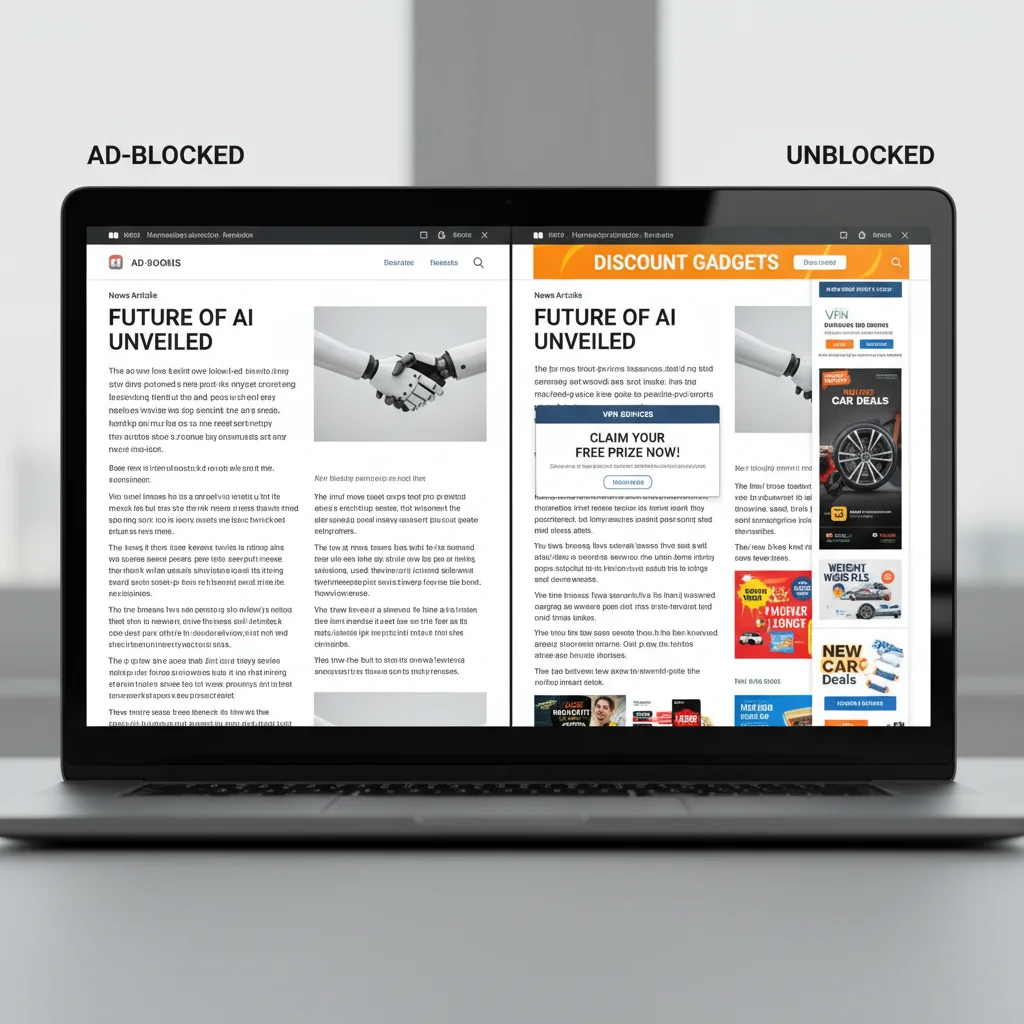
The Ethics of Ad Blocking: Supporting Content Creators
While the focus of this guide is to help you block annoying ads, it’s important to acknowledge the role of advertising in supporting free online content. Many websites rely on ad revenue to pay their writers, developers, and hosting costs. When you block ads, you’re essentially consuming content without contributing to its financial sustainability.
Consider these points:
- Whitelisting Trusted Sites: If you frequently visit and value a particular website, consider whitelisting it in your ad blocker. This allows ads to display, helping to support the content creators.
- Paid Subscriptions: Many news sites, streaming services, and content platforms offer ad-free paid subscriptions. If you can afford it and value the content, this is an excellent way to support them directly.
- Donations: Some independent creators or open-source projects rely on direct donations.
Finding a balance between a clean browsing experience and supporting the ecosystem of free online content is a personal choice. The goal is not necessarily to block every single ad, but to block annoying ads that are intrusive, harmful, or degrade your experience, while still supporting the content you love where possible.
Conclusion: Reclaim Your Online Experience by Blocking Annoying Ads
The internet should be a place of information, connection, and entertainment, not a battleground against intrusive advertisements. By understanding and implementing the strategies outlined in this guide, you can significantly improve your browsing experience, enhance your online privacy, and protect yourself from potential security threats. Whether you choose to leverage your browser’s built-in features, install a powerful ad-blocking extension like uBlock Origin, or explore advanced network-level solutions, the power to block annoying ads is firmly in your hands.
Take a few minutes today to configure your browser and install an ad blocker. You’ll be amazed at the difference it makes. Enjoy faster page loads, a cleaner interface, and a more peaceful online environment. Reclaim your digital space and browse with confidence, knowing that you’ve taken proactive steps to block annoying ads and pop-ups for good.
Happy ad-free browsing!