Master Your Browser: Unlock Advanced Features for 20% More Efficiency
In today’s digital-first world, our web browser is often the primary gateway to work, information, and entertainment. Yet, for many, it remains a largely untapped resource, used only for its most basic functions. Imagine if you could unlock hidden capabilities, streamline your workflow, and boost your online efficiency by a significant margin – say, 20% or even more. This isn’t a pipe dream; it’s entirely achievable through strategic browser customization efficiency. By delving into advanced features, extensions, and settings, you can transform your browser from a simple tool into a powerful, personalized productivity hub.
This comprehensive guide will walk you through the myriad ways to optimize your web browser, covering popular options like Chrome, Firefox, Edge, and more. We’ll explore everything from essential extensions to intricate configuration tweaks, all designed to make your online experience faster, smarter, and more tailored to your unique needs. Prepare to reclaim your digital time and elevate your browsing game.
The Foundation: Understanding Your Browser’s Potential
Before diving into specific customizations, it’s crucial to understand that modern web browsers are far more than just content viewers. They are sophisticated applications built with vast potential for personalization and enhancement. Each browser, while sharing core functionalities, offers unique advantages and ecosystems for advanced users. Recognizing this potential is the first step towards achieving significant browser customization efficiency.
Why Customize? The Efficiency Imperative
The average person spends countless hours each day interacting with their web browser. Think about the repetitive tasks, the constant tab switching, the information overload. Even small inefficiencies, when compounded over weeks and months, lead to substantial time loss and mental fatigue. Customizing your browser isn’t just about aesthetics; it’s about:
- Reducing Digital Clutter: A streamlined interface means less distraction and easier navigation.
- Automating Repetitive Tasks: Many tools can handle mundane actions, freeing you for more complex work.
- Enhancing Information Access: Quickly find, save, and organize the data you need.
- Improving Focus: Minimize interruptions and maintain concentration on your current task.
- Boosting Speed and Performance: Optimize settings to ensure your browser runs smoothly and quickly.
By focusing on these areas, you can realistically aim for a 20% or greater improvement in your daily digital workflow. This isn’t just about saving time; it’s about reducing stress and increasing overall productivity.
Essential Browser Extensions for Peak Productivity
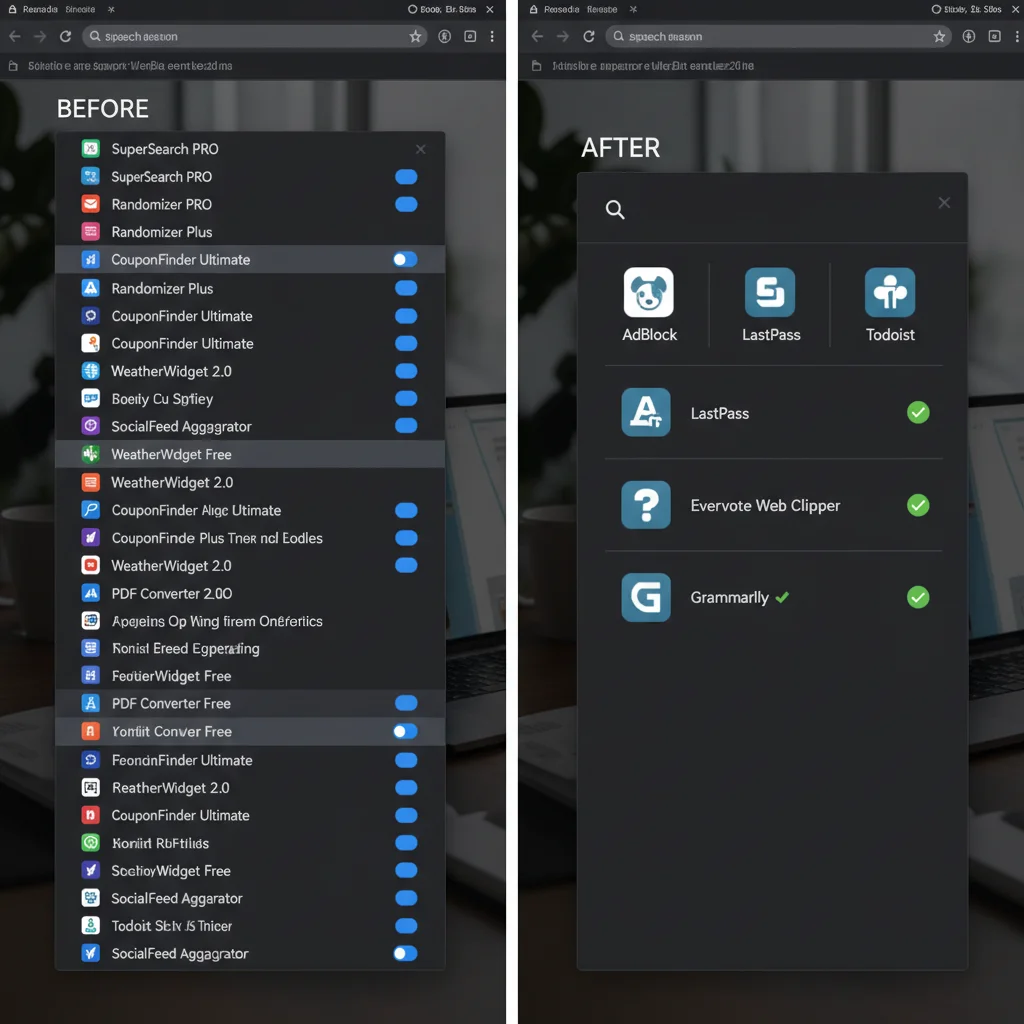
Extensions are arguably the most powerful tool in your arsenal for achieving superior browser customization efficiency. They add functionalities that browsers don’t natively offer, tailoring your experience to specific needs. However, the sheer volume of available extensions can be overwhelming. The key is to choose wisely, focusing on quality over quantity.
Category 1: Task Management & Organization
- Ad Blockers (e.g., uBlock Origin, AdGuard): Essential for reducing visual clutter and speeding up page loading. Fewer distractions mean better focus.
- Tab Managers (e.g., OneTab, The Great Suspender/Tab Wrangler): If you’re a tab hoarder, these are lifesavers. They help you organize, save, and suspend inactive tabs, reducing memory usage and improving browser performance.
- Read-It-Later Services (e.g., Pocket, Instapaper): Save articles for later reading without cluttering your bookmarks. These often offer distraction-free reading modes.
- Note-Taking & Web Clipping (e.g., Evernote Web Clipper, Notion Web Clipper): Capture snippets of web pages, full articles, or screenshots directly into your note-taking system.
Category 2: Focus & Distraction Blocking
- Website Blockers (e.g., StayFocusd, LeechBlock NG): Temporarily block access to distracting websites (social media, news sites) during work hours. Highly effective for maintaining concentration.
- Dark Mode Extensions (e.g., Dark Reader): Reduce eye strain, especially during late-night browsing, by applying a dark theme to all websites. This contributes to sustained focus.
- Session Managers (e.g., Session Buddy, Tab Session Manager): Save and restore groups of tabs, allowing you to switch between different work contexts seamlessly without losing your place.
Category 3: Web Development & Information Gathering
- Developer Tools (Built-in, but extensions like Web Developer, ColorZilla enhance them): For those in web development or design, these provide quick access to CSS, HTML, and color information.
- Grammar & Writing Assistants (e.g., Grammarly, LanguageTool): Ensure your online communications are clear and error-free, saving time on revisions.
- Password Managers (e.g., LastPass, 1Password, Bitwarden): Securely store and auto-fill login credentials, saving immense time and boosting security. This is a cornerstone of modern digital efficiency.
When selecting extensions, always consider their impact on browser performance. Too many extensions, or poorly coded ones, can slow down your browser. Regularly review and remove extensions you no longer use.
Deep Dive into Browser Settings for Performance & Privacy
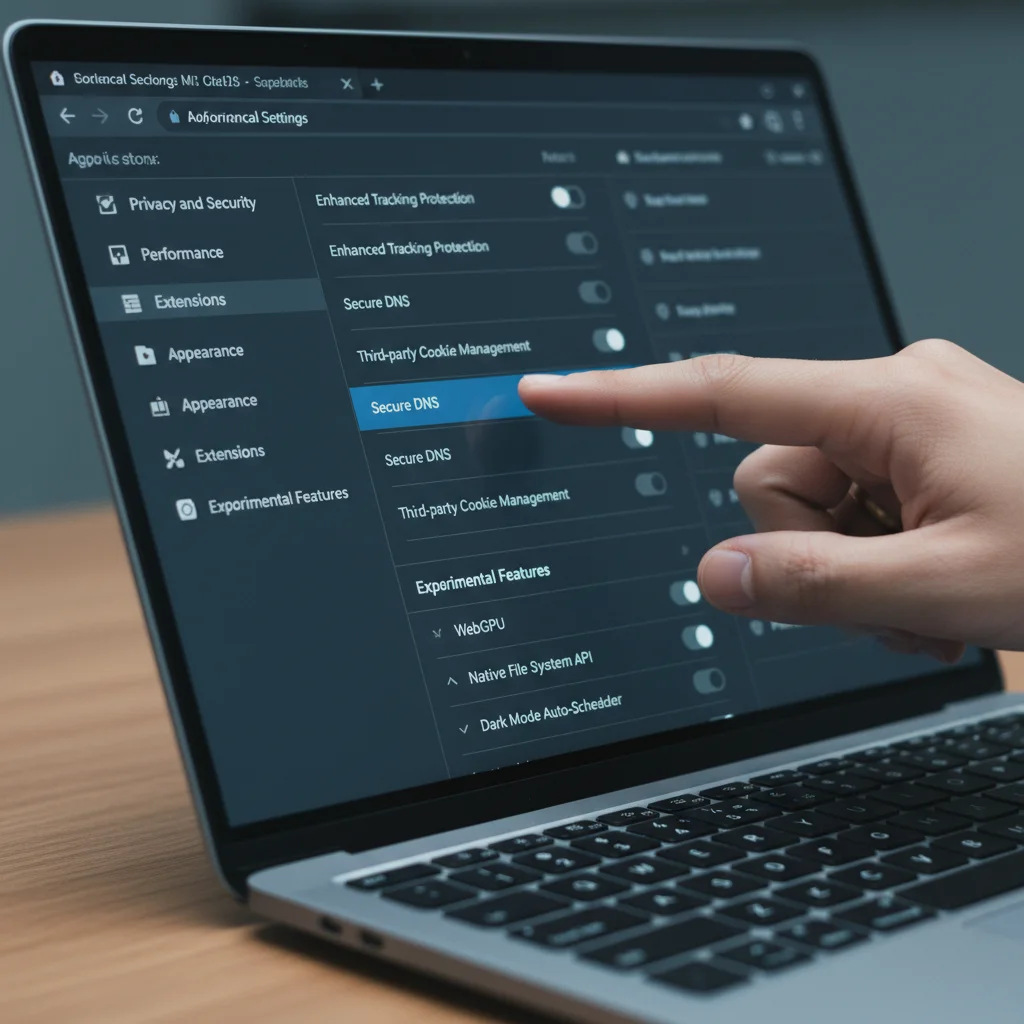
Beyond extensions, the native settings of your browser offer a wealth of opportunities for browser customization efficiency. These aren’t always immediately obvious, but tweaking them can significantly impact speed, privacy, and user experience.
Google Chrome: Power User Tweaks
- Flags (chrome://flags): This experimental features page is a goldmine for advanced users. Be cautious, as these are experimental, but some can offer significant performance boosts. Look for options related to parallel downloading, GPU rasterization, or experimental Web Platform features that might speed up specific sites.
- Hardware Acceleration: Ensure this is enabled in your Chrome settings (System > Use hardware acceleration when available). This offloads graphics processing to your GPU, freeing up your CPU and speeding up rendering.
- Preload Pages (Privacy and security > Preload pages): Chrome can predict which pages you might visit next and preload them. While it uses more data, it can make browsing feel significantly faster.
- Site Settings (Privacy and security > Site Settings): Take control of permissions for individual websites. Block notifications, microphone access, and location tracking for sites that don’t need them, enhancing both privacy and performance.
- Memory Saver (Performance > Memory Saver): This feature automatically frees up memory from inactive tabs. When you go back to an inactive tab, it automatically reloads. This is a game-changer for systems with limited RAM or users who keep many tabs open.
Mozilla Firefox: Open Source Optimization
- about:config: Similar to Chrome’s flags, this is Firefox’s advanced preference editor. Here, you can fine-tune almost every aspect of the browser. For example, search for
network.http.pipeliningto potentially speed up page loading (though modern HTTP/2 often negates the need for this). - Container Tabs (Multi-Account Containers extension): This Firefox-exclusive feature allows you to isolate your browsing activities into separate ‘containers’. For example, you can have a ‘Work’ container, a ‘Personal’ container, and a ‘Shopping’ container, each with its own cookies and site data. This is a massive boost to privacy and organization.
- Enhanced Tracking Protection: Firefox has robust built-in tracking protection. Customize it to ‘Strict’ for maximum privacy, though this might break some websites. Adjust as needed.
- DNS over HTTPS (DoH): Enable DoH for enhanced privacy and security, encrypting your DNS queries. Find this under General > Network Settings > Enable DNS over HTTPS.
- Picture-in-Picture Mode: While not directly a performance tweak, it allows you to pop out videos into a floating window, letting you watch content while working in other tabs, enhancing multitasking efficiency.
Microsoft Edge: Chromium with a Twist
- Startup Boost: Edge can start up faster by running core processes in the background, even when the browser window is closed. (Settings > System and performance > Startup boost).
- Efficiency Mode: This feature helps reduce CPU and RAM usage by putting inactive tabs to sleep. It’s especially useful for laptops to save battery life. (Settings > System and performance > Optimize Performance).
- Tracking Prevention: Similar to Firefox, Edge offers robust tracking prevention. Set it to ‘Strict’ for enhanced privacy, or ‘Balanced’ for a good compromise.
- Vertical Tabs: A unique Edge feature that moves your tabs to the side of the window, making it easier to manage many open tabs, especially on widescreen monitors. This significantly contributes to visual browser customization efficiency.
- Sleeping Tabs: Automatically puts inactive tabs to sleep to free up system resources. You can configure when tabs go to sleep and add sites to an ‘Always active’ list.
Advanced Customization Techniques for Ultimate Efficiency
Beyond extensions and basic settings, several advanced techniques can further refine your browsing experience and cement your browser customization efficiency.
Keyboard Shortcuts: Your Fastest Path
Mastering keyboard shortcuts is perhaps the single most impactful way to speed up your daily browsing. Every second saved by avoiding mouse clicks adds up. Here are some universal and browser-specific examples:
- Ctrl/Cmd + T: New Tab
- Ctrl/Cmd + W: Close Tab
- Ctrl/Cmd + Shift + T: Reopen Last Closed Tab
- Ctrl/Cmd + L: Focus Address Bar
- Ctrl/Cmd + D: Bookmark Current Page
- Ctrl/Cmd + Tab / Ctrl/Cmd + Shift + Tab: Switch Between Tabs
- Ctrl/Cmd + N: New Window
- F5 / Ctrl/Cmd + R: Refresh Page
- Spacebar / Shift + Spacebar: Scroll Down/Up a Page
Many extensions also come with customizable shortcuts. Dedicate some time to learning the shortcuts for your most frequent actions; the return on investment is immediate and substantial.
Search Engine Customization & Keywords
Did you know you can set up custom search engines for almost any website? This is a powerful feature for rapid information retrieval. For example, instead of going to YouTube, then searching, you can type yt [search term] directly into your address bar.
- In Chrome/Edge: Go to Settings > Search engine > Manage search engines and site search. Click ‘Add’ and fill in the details. The ‘URL with %s in place of query’ is where you put the search URL, replacing the query with
%s. - In Firefox: Right-click on a search bar on any website and select ‘Add a Keyword for this Search’.
This simple trick can save you countless clicks and significantly boost your information-gathering browser customization efficiency.
Profile Management for Work-Life Balance
Many browsers allow you to create multiple user profiles. This is invaluable for separating work from personal browsing, or for managing different client accounts. Each profile has its own history, bookmarks, extensions, and settings. This prevents cross-contamination of data and helps you maintain focus by switching contexts cleanly.
Custom Themes & Visual Ergonomics
While often seen as purely aesthetic, choosing the right theme can contribute to your overall efficiency. A theme that is easy on the eyes (e.g., a dark theme), or one that provides clear visual cues, can reduce eye strain and improve your ability to quickly identify elements on the screen. Many browsers offer extensive theme galleries.
Maintaining Your Optimized Browser: Best Practices
Achieving optimal browser customization efficiency isn’t a one-time setup; it’s an ongoing process. Regular maintenance ensures your browser remains fast, secure, and tailored to your evolving needs.
Regular Extension Audit
Periodically review your installed extensions. Remove any you no longer use or that seem to be consuming excessive resources. Be wary of extensions that request too many permissions, as they can pose security risks or slow down your browser.
Clear Cache and Cookies (Strategically)
While clearing your cache and cookies can sometimes resolve performance issues, doing it too frequently can actually slow down your browsing by forcing sites to reload resources. Instead, identify specific problematic sites or use incognito/private mode for sensitive browsing to avoid accumulating unnecessary data in your main profile.
Keep Your Browser Updated
Browser developers constantly release updates that include performance improvements, security patches, and new features. Ensure your browser is always running the latest version to benefit from these enhancements.
Monitor Resource Usage
Most browsers have a built-in task manager (e.g., Chrome’s Shift+Esc, Firefox’s about:performance). Use this to identify which tabs or extensions are consuming the most CPU and memory. This can help you pinpoint resource hogs and make informed decisions about managing your browser.
Troubleshooting Common Efficiency Roadblocks
Even with careful customization, you might encounter issues that hinder your browser’s performance. Here’s how to address some common roadblocks to maintain your browser customization efficiency:
Browser Slowdown
- Too Many Tabs: Use a tab manager extension or simply close inactive tabs.
- Resource-Heavy Extensions: Disable extensions one by one to identify the culprit.
- Outdated Browser: Update your browser to the latest version.
- Full Cache: Clear your browser cache and cookies.
- Malware/Adware: Run a full system scan with reputable antivirus software.
Website Incompatibility
- Aggressive Ad Blocker/Tracker Blocker: Temporarily disable your ad blocker or tracking protection for the specific site.
- Experimental Flags: If you’ve enabled flags, try disabling them to see if they are causing issues.
- Outdated Site: Sometimes, the problem is with the website itself, not your browser. Try accessing the site on a different browser or device.
Privacy Concerns
- Review Permissions: Regularly check site permissions (camera, microphone, location) and revoke unnecessary ones.
- Third-Party Cookies: Block third-party cookies in your privacy settings.
- VPN Usage: Consider using a Virtual Private Network (VPN) for an additional layer of privacy and security, especially on public Wi-Fi.
Beyond the Desktop: Mobile Browser Optimization
Our digital lives aren’t confined to desktops. Mobile browsers also offer opportunities for browser customization efficiency, though typically to a lesser extent than their desktop counterparts.
- Content Blockers (iOS Safari, Android browsers with extension support): Reduce data usage and speed up loading times by blocking ads and trackers.
- Lite Modes/Data Saver: Many mobile browsers offer a data-saving mode that compresses web pages, resulting in faster loading and less data consumption.
- Reader Modes: Most modern mobile browsers have a reader mode that strips away distractions from articles, making them easier to read on small screens.
- Gestures & Quick Actions: Familiarize yourself with swipe gestures and quick action menus for faster navigation.
While mobile customization is often more limited, these small tweaks can still add up to a more efficient on-the-go browsing experience.
The Future of Browser Efficiency
The landscape of web browsing is constantly evolving. AI integration, enhanced privacy features, and more seamless cross-device synchronization are just some of the trends shaping the future of browsers. Staying informed about these developments will allow you to continually adapt your browser customization efficiency strategies.
- AI-Powered Assistants: Expect more sophisticated AI tools integrated directly into browsers, offering smarter search, content summarization, and task automation.
- Decentralized Web (Web3): As Web3 technologies mature, browsers will need to adapt, offering new ways to interact with decentralized applications and manage digital assets.
- Enhanced Privacy Controls: Users will demand even greater control over their data, leading to more robust built-in privacy features and less reliance on third-party extensions for basic protection.
- Progressive Web Apps (PWAs): The blurring lines between web applications and native applications will continue, with browsers playing a central role in delivering highly functional, offline-capable web experiences.
Embracing these future trends will be key to maintaining a cutting-edge and efficient browsing setup.
Conclusion: Your Personalized Path to 20% More Efficiency
By now, it should be clear that your web browser is a powerful, customizable tool with immense potential for boosting your productivity. From carefully selected extensions that automate tasks and block distractions, to deep dives into experimental settings that optimize performance and privacy, every tweak contributes to a more streamlined and enjoyable online experience. The goal of achieving 20% more browser customization efficiency is not only realistic but often just the beginning.
Start small. Choose one or two areas to focus on first, perhaps by installing a tab manager or configuring a custom search engine. As you become more comfortable, gradually explore more advanced options. Remember to regularly audit your setup, remove what’s no longer necessary, and stay updated with the latest browser features. Your browser should work for you, not the other way around. Take control, customize intelligently, and unlock a new level of digital productivity.