Master Parental Controls 2026: A Family Guide for All Devices

Mastering Parental Controls 2026: Your Comprehensive Guide for Digital Family Safety
In an ever-evolving digital landscape, ensuring the safety of our children online is paramount. This in-depth guide will walk you through setting up and optimizing parental controls 2026 across all your family’s devices, offering peace of mind and fostering healthy digital habits.
The Imperative of Parental Controls in 2026
The year 2026 brings with it an even more integrated digital world. From smart home devices to advanced gaming consoles, augmented reality experiences, and pervasive social media, children are exposed to a vast array of online content and interactions. While these technologies offer immense educational and recreational opportunities, they also present significant risks: exposure to inappropriate content, cyberbullying, online predators, excessive screen time, and privacy breaches. Implementing robust parental controls 2026 is no longer just an option; it’s a fundamental responsibility for modern parents.
This guide aims to demystify the process, providing clear, actionable steps to safeguard your children across various platforms and devices. We’ll cover everything from smartphones and tablets to gaming consoles, smart TVs, and even network-level protections, ensuring a holistic approach to digital parenting.
Understanding the Landscape of Digital Threats
Before diving into specific controls, it’s crucial to understand what we’re protecting our children from. The digital threats of 2026 are sophisticated and multifaceted:
- Inappropriate Content: Explicit material, violence, hate speech, and misinformation are easily accessible.
- Cyberbullying: Online harassment can have severe psychological impacts.
- Online Predators: Individuals seeking to exploit children through deceptive communication.
- Excessive Screen Time: Can lead to sleep disturbances, academic issues, and reduced physical activity.
- Privacy Risks: Personal data collection, location tracking, and sharing of private information.
- Gaming Addiction & In-App Purchases: Unregulated access can lead to financial strain and behavioral issues.
- Phishing & Scams: Children can be targets for fraudulent schemes.
Effective parental controls 2026 are your first line of defense against these dangers, but they must be complemented by open communication and education.
Key Principles for Effective Parental Controls
Before you begin configuring settings, consider these overarching principles:
- Open Communication: Talk to your children about online safety, privacy, and responsible digital behavior. Explain why controls are in place, fostering trust rather than resentment.
- Age-Appropriate Settings: What’s suitable for a 5-year-old is different from a 15-year-old. Adjust controls as your children mature.
- Regular Review: Digital platforms update frequently. Revisit your parental controls 2026 settings periodically to ensure they are still effective and up-to-date.
- Lead by Example: Model healthy digital habits yourself.
- Don’t Rely Solely on Technology: Controls are tools, not babysitters. Active parenting and supervision remain essential.
Step-by-Step Guide: Setting Up Parental Controls on Key Devices
1. Smartphones & Tablets (iOS & Android)
These are often the most personal devices and require careful attention.
iOS Devices (iPhone, iPad): Screen Time
Apple’s Screen Time is a powerful suite of parental controls 2026.
- Enable Screen Time: Go to Settings > Screen Time. Tap ‘Turn On Screen Time’ and then ‘Continue’. Select ‘This is My Child’s iPhone/iPad’.
- Downtime: Schedule times when apps and notifications are blocked (except for allowed apps and phone calls).
- App Limits: Set daily time limits for app categories (e.g., social networking, games) or individual apps.
- Communication Limits: Control who your child can communicate with during Screen Time and Downtime.
- Always Allowed: Select apps that are always available, even during Downtime (e.g., educational apps, communication with parents).
- Content & Privacy Restrictions: This is where the core filtering happens.
- iTunes & App Store Purchases: Prevent accidental or unauthorized purchases, app downloads, and in-app purchases.
- Allowed Apps: Restrict access to built-in apps like Safari, Camera, FaceTime, etc.
- Content Restrictions: Filter web content (unrestricted access, limit adult websites, allowed websites only), block explicit language, and restrict music, movies, TV shows, and apps by age rating.
- Privacy: Control location services, contacts, photos, and other privacy settings.
- Game Center: Manage multiplayer games, adding friends, and screen recording.
- Screen Time Passcode: Essential! Set a unique passcode that your child doesn’t know to prevent them from changing settings.
Android Devices: Google Family Link
Google Family Link is your central hub for Android parental controls 2026.
- Set Up Family Link: Download the Family Link app on your device and your child’s device. Follow the on-screen instructions to link their Google account to yours.
- Manage Apps: Approve or block apps your child wants to download from the Google Play Store. You can also block existing apps.
- App Activity: See how much time your child spends on their favorite apps.
- Screen Time Limits: Set daily screen time limits and a device bedtime.
- Device Location: See your child’s device location (if the device is on, charged, and connected to the internet).
- Content Restrictions (Google Play): Set age restrictions for apps, games, movies, and TV shows in the Play Store. You can also restrict music and books.
- Google Search & YouTube: Enable SafeSearch for Google and Restricted Mode for YouTube to filter explicit content.
- Chrome Filtering: Limit websites your child can visit on Chrome.
- Account Supervision: Control various aspects of their Google account, including privacy settings.
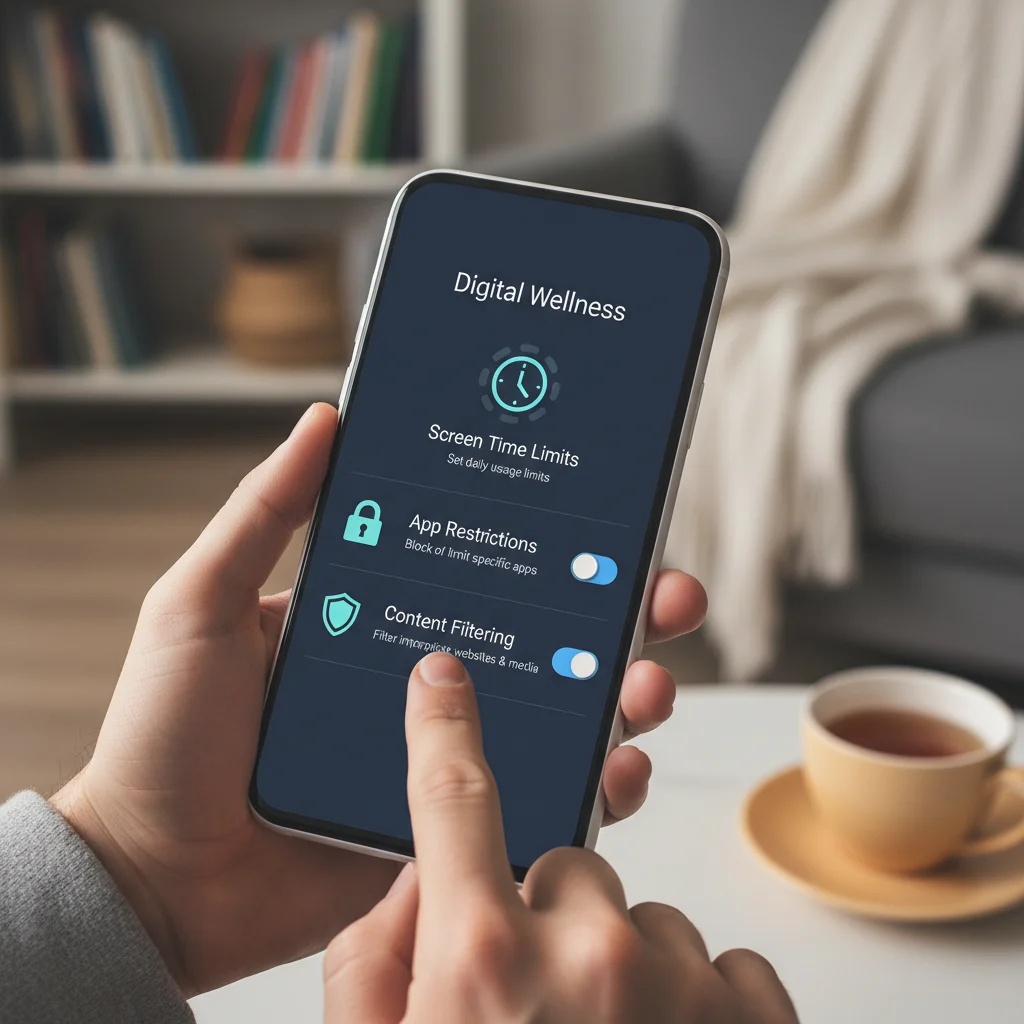
2. Gaming Consoles (PlayStation, Xbox, Nintendo Switch)
Gaming consoles are significant sources of entertainment and potential exposure to unfiltered content and online interactions. Implementing parental controls 2026 here is critical.
PlayStation (PS5, PS4): Family Management
- Create Family Account: On your PlayStation, go to Settings > Family and Parental Controls > Family Management. Create accounts for each child.
- Set Roles: Assign yourself as ‘Family Manager’ and your children as ‘Family Members’.
- Parental Controls for Each Child:
- Age Restrictions: Restrict games based on age ratings (ESRB, PEGI).
- Communication & User-Generated Content: Limit chat, messaging, and sharing of user-generated content.
- Web Browser Restrictions: Control access to the internet browser.
- Monthly Spending Limits: Set a cap on how much can be spent on the PlayStation Store.
- Play Time Restrictions: Set daily play limits and restrict play during certain hours.
- PS VR Restrictions: If applicable, restrict access to PlayStation VR content.
Xbox (Xbox Series X/S, Xbox One): Xbox Family Settings App / Microsoft Family Safety
- Microsoft Family Safety: This cross-platform solution works across Xbox, Windows, and Android. Download the app on your phone.
- Create Family Group: Add your children’s Microsoft accounts to your family group.
- Manage Settings for Each Child:
- Content Filters: Restrict games, apps, and websites based on age.
- Screen Time: Set daily or weekly screen time limits for Xbox and Windows devices.
- Spending Limits: Manage purchases from the Microsoft Store.
- Multiplayer & Communication: Control who your child can play with and communicate with online.
- Cross-Network Play: Manage interactions with players on other platforms.
Nintendo Switch: Nintendo Switch Parental Controls App
- Download App: Get the ‘Nintendo Switch Parental Controls’ app on your smartphone.
- Link Console: Link the app to your Nintendo Switch console.
- Set Restrictions:
- Play Time Limit: Set daily play limits. The console can automatically suspend gameplay or simply notify the child.
- Suspension Software: Set the console to suspend gameplay automatically when the time limit is reached.
- Restriction Level: Choose from pre-set age-based restrictions or customize settings for software titles, communication with others, and sharing on social media.
- eShop Purchases: Manage purchases through the Nintendo Account settings online.
3. Smart TVs & Streaming Devices (Roku, Amazon Fire TV, Apple TV)
While often overlooked, smart TVs and streaming sticks are gateways to a vast amount of content. Effective parental controls 2026 are necessary here too.
Smart TVs (Samsung, LG, Sony, etc.)
- Built-in Parental Controls: Most smart TVs have a ‘Parental Controls’ or ‘Safety’ section in their settings menu.
- PIN Protection: Set a PIN to prevent children from changing settings.
- Channel Blocking: Block specific TV channels.
- Content Ratings: Restrict content based on TV show or movie ratings (e.g., G, PG, PG-13, R).
- Input Blocking: Prevent access to specific HDMI inputs (e.g., if a gaming console without its own controls is connected).
Streaming Devices (Roku, Amazon Fire TV, Apple TV, Google TV)
- Roku: Set a PIN for purchases and content ratings within the Roku settings. Individual apps (Netflix, Hulu) will have their own controls.
- Amazon Fire TV: Go to Settings > Preferences > Parental Controls. Set a PIN, enable purchase restrictions, and restrict content based on age ratings.
- Apple TV: Settings > General > Restrictions. Enable restrictions with a passcode, then manage ratings for movies, TV shows, apps, and explicit content.
- Google TV (Chromecast with Google TV): Leverage Google Family Link for profile management and content restrictions. You can create child profiles with specific app access and content filters.
Remember that many streaming services (Netflix, Disney+, Hulu, YouTube Kids) have their own robust parental controls 2026 within their respective apps. You’ll need to configure these separately for each service your child uses.
4. Computers (Windows & macOS)
Computers offer the broadest range of functionality and thus require comprehensive parental controls 2026.
Windows: Microsoft Family Safety
- Microsoft Family Safety: As mentioned for Xbox, this service extends to Windows.
- Create Child Accounts: Ensure your child has a standard user account linked to your Microsoft Family Safety group.
- Web and Search Filters: Block inappropriate websites on Microsoft Edge and Chrome (with extension). Enable SafeSearch for Bing, Google, and other search engines.
- App and Game Limits: Set time limits for specific apps and games.
- Screen Time: Schedule when the device can be used.
- Activity Reporting: Get reports on your child’s device activity.
- Purchase Management: Control spending in the Microsoft Store.
macOS: Screen Time
- Enable Screen Time: System Settings (or System Preferences) > Screen Time.
- Set Up for Child: If your child has an Apple ID, you can manage their Screen Time from your Mac.
- Downtime & App Limits: Similar to iOS, schedule downtime and set limits for app categories or individual apps.
- Content & Privacy:
- Web Content: Restrict access to adult websites or allow only specific sites.
- Store Purchases: Prevent app installations, deletions, and in-app purchases.
- App Usage: Restrict apps based on age ratings.
- Privacy: Manage location services, contacts, photos, and other data access.
- Screen Time Passcode: Protect your settings with a passcode.
Network-Level Parental Controls: Your Digital Perimeter
While device-specific controls are essential, network-level parental controls 2026 provide an overarching layer of protection, especially for devices that might not have robust built-in options or for guest Wi-Fi access.
Router-Based Controls
Many modern Wi-Fi routers come with built-in parental control features. Access your router’s administration page (usually via a web browser using its IP address, e.g., 192.168.1.1).
- Content Filtering: Block access to specific websites or categories (e.g., adult, gambling).
- Website Blacklisting/Whitelisting: Create lists of forbidden or allowed sites.
- Time Restrictions: Schedule internet access for specific devices or profiles.
- Guest Network: Set up a separate guest network with more restrictive settings.
Note: Router capabilities vary widely. Consult your router’s manual or manufacturer’s website for specific instructions.
Third-Party DNS Filters (e.g., OpenDNS, CleanBrowsing)
These services filter internet content at the Domain Name System (DNS) level. By changing your router’s DNS settings to point to their servers, all devices connected to your home network will be filtered.
- Pros: Comprehensive, works on all devices without individual setup, often free for basic filtering.
- Cons: Less granular than device-specific controls, can be bypassed by tech-savvy kids using VPNs or changing their device’s DNS settings.
Dedicated Parental Control Software/Hardware (e.g., Circle, Bark, Net Nanny)
For the most comprehensive and integrated solution, consider dedicated services.
- Circle Home Plus: A hardware device that connects to your router, offering extensive internet filtering, time limits, and usage tracking for every device on your network.
- Bark: Focuses on monitoring texts, emails, and 30+ social media platforms for signs of cyberbullying, predatory behavior, and self-harm, alerting parents to potential issues.
- Net Nanny: Offers content filtering, screen time management, and pornography blocking across multiple devices (Windows, macOS, Android, iOS).

Beyond Technology: Fostering Digital Citizenship
While parental controls 2026 are indispensable, they are just one component of responsible digital parenting. The ultimate goal is to equip children with the skills and judgment to navigate the online world safely and responsibly, even when controls aren’t present.
Open Dialogue and Trust
Regularly discuss online experiences with your children. Ask them about what they’re doing, seeing, and feeling online. Create an environment where they feel comfortable coming to you if they encounter something unsettling or are being cyberbullied.
Digital Literacy and Critical Thinking
Teach your children to be critical consumers of online information. Help them identify fake news, understand the permanence of online posts, and recognize the signs of phishing or scams.
Privacy Education
Explain the importance of personal privacy and why they should never share personal information (full name, address, phone number, school) with strangers online. Discuss location services and how to manage them.
Balanced Screen Time
Work with your children to establish healthy screen time habits. Encourage a balance between digital activities and offline pursuits like reading, sports, outdoor play, and face-to-face social interactions. Use parental controls 2026 to enforce these agreed-upon limits.
Responding to Incidents
Despite your best efforts, your child might still encounter inappropriate content or experience negative online interactions. Have a plan for how you will respond: stay calm, reassure your child, document the incident, and report it to the relevant platform or authorities if necessary.
The Future of Parental Controls: What to Expect in 2026 and Beyond
The landscape of parental controls 2026 is continually evolving. We can anticipate even more sophisticated features:
- AI-Powered Content Moderation: More advanced AI will likely be used to identify and filter inappropriate content in real-time, even within live streams and voice chats.
- Integrated Ecosystems: Device manufacturers and software providers will likely offer more seamless, cross-platform parental control solutions, making management easier for parents.
- Emotional Well-being Monitoring: Tools that can detect signs of cyberbullying or online distress through linguistic analysis, offering proactive alerts to parents.
- Augmented Reality (AR) & Virtual Reality (VR) Controls: As these technologies become more mainstream, specific controls for AR/VR content, interactions, and potential exposure risks will become standard.
- Smart Home Integration: Parental controls extending to smart home devices, managing access to voice assistants, smart speakers, and connected toys.
Staying informed about these advancements and regularly updating your knowledge on parental controls 2026 will be key to maintaining a safe digital environment for your family.
Conclusion: A Proactive Approach to Digital Safety
Implementing parental controls 2026 across all your family’s devices is a vital step in protecting your children in the digital age. From smartphones and tablets to gaming consoles, smart TVs, and network-level solutions, a multi-layered approach offers the best defense.
Remember, technology is a tool. Combine these technical safeguards with open communication, education, and active involvement in your children’s digital lives. By doing so, you empower them to become responsible digital citizens, capable of navigating the online world safely and confidently. Start today, and build a secure digital future for your family.