Mastering Keyboard Shortcuts: 12 Essential Commands to Save 30 Minutes Daily

In our increasingly digital world, time is a precious commodity. Every click, every drag, every moment spent navigating menus can add up, slowly but surely eroding your productivity. What if there was a way to reclaim those lost minutes, to streamline your workflow, and to truly master your digital environment? The answer lies in the often-underestimated power of keyboard shortcut mastery. This comprehensive guide will introduce you to 12 essential keyboard shortcuts that, when integrated into your daily routine, promise to save you at least 30 minutes every single day. Prepare to transform your interaction with technology, moving from a casual user to a true power user.
Think about it: how many times a day do you copy and paste text? How often do you switch between applications, open new tabs, or save documents? Each of these actions, performed with a mouse, takes a fraction of a second longer than its keyboard shortcut counterpart. Those fractions, over hours, days, weeks, and years, accumulate into significant chunks of lost time. By embracing keyboard shortcut mastery, you’re not just learning a few commands; you’re investing in a more efficient, less frustrating, and ultimately more productive future.
This article isn’t just a list; it’s a roadmap to enhanced digital fluency. We’ll cover shortcuts applicable across various operating systems (Windows and macOS) and common applications, ensuring that no matter your setup, you’ll find valuable insights. From basic navigation to advanced text manipulation, we’ll equip you with the tools to navigate your digital world with unparalleled speed and precision. Let’s dive in and unlock the secret to saving valuable time every single day through the art of keyboard shortcut mastery.
The Unseen Cost of Mouse-Centric Workflows
Before we delve into the specific shortcuts, let’s briefly consider why keyboard shortcut mastery is so crucial. The mouse, while intuitive, introduces a significant amount of friction into your workflow. Each time you move your hand from the keyboard to the mouse, locate the cursor, click, and then return to the keyboard, you’re performing a series of micro-actions that break your focus and slow you down. This constant context-switching can be mentally taxing and leads to a phenomenon known as ‘mouse mileage’ – the cumulative distance your hand travels, often unnecessarily, throughout the day.
Imagine writing an email. You type a sentence, then reach for the mouse to bold a word, then back to the keyboard to type, then to the mouse to copy a phrase, and so on. This back-and-forth movement isn’t just physically inefficient; it disrupts your mental flow. Keyboard shortcuts, on the other hand, allow your hands to remain in the ‘home row’ position, maintaining an uninterrupted connection with your thoughts and the text you’re producing. This seamless interaction is the cornerstone of true keyboard shortcut mastery.
Furthermore, relying solely on the mouse often means navigating through nested menus, clicking multiple times to achieve a single action. Keyboard shortcuts bypass these layers, offering direct access to commands with a simple combination of keys. This directness not only saves time but also reduces cognitive load, allowing you to dedicate more mental energy to the task at hand rather than the mechanics of operating your computer.
The cumulative effect of these small inefficiencies is staggering. A few seconds saved per action, multiplied by hundreds of actions per day, easily translates into tens of minutes, if not hours, over a week. By consciously shifting towards keyboard shortcut mastery, you’re not just optimizing your computer usage; you’re optimizing your entire workday, freeing up valuable time for more strategic thinking, creative tasks, or even a well-deserved break.
12 Essential Keyboard Shortcuts for Daily Time Savings
Here are 12 indispensable keyboard shortcuts that will dramatically improve your productivity and help you achieve keyboard shortcut mastery. We’ll categorize them for clarity and provide both Windows and macOS equivalents where applicable.
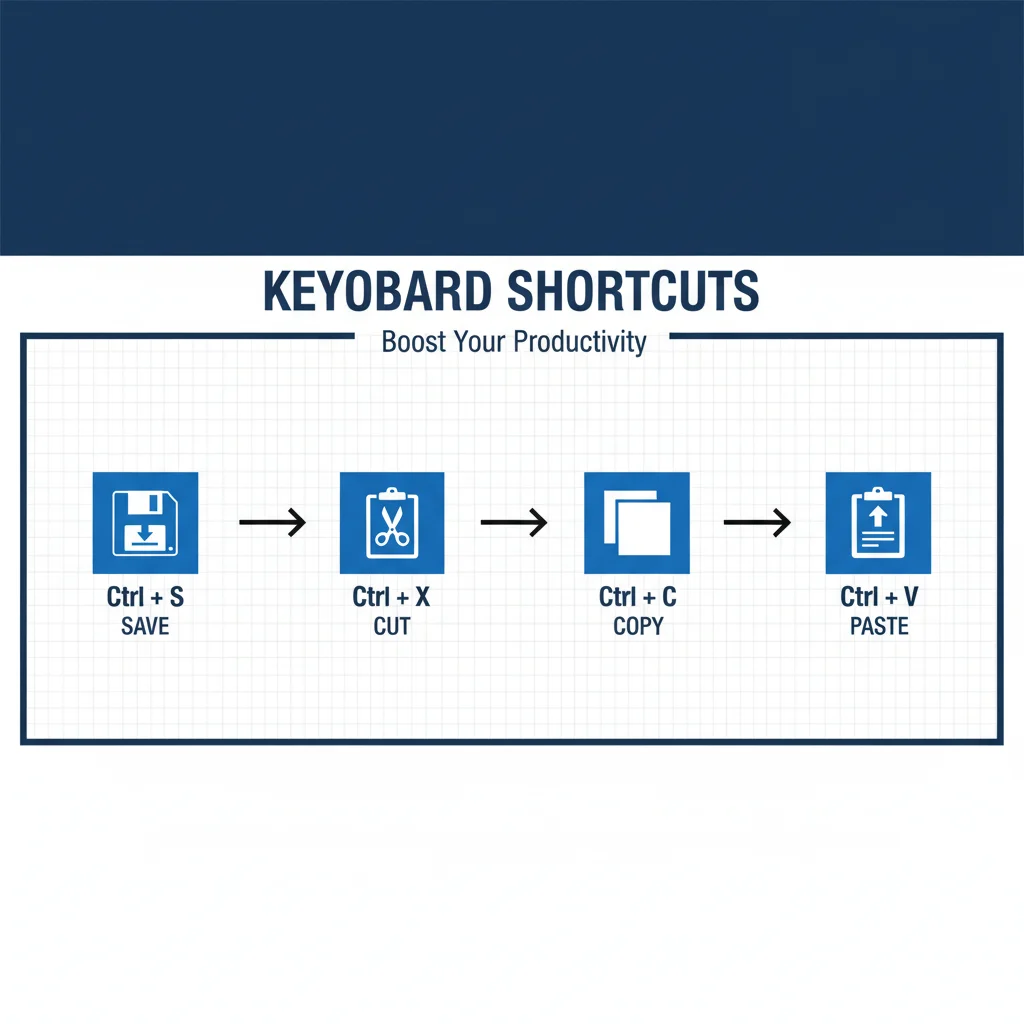
1. Copy, Cut, and Paste (The Holy Trinity of Text Manipulation)
- Copy:
Ctrl + C(Windows) /Cmd + C(macOS) - Cut:
Ctrl + X(Windows) /Cmd + X(macOS) - Paste:
Ctrl + V(Windows) /Cmd + V(macOS)
These three are arguably the most fundamental shortcuts. If you learn nothing else, master these. They eliminate the need to right-click, select an option, and then click again. Imagine how many times a day you perform these actions. Saving even a second per action adds up quickly. They are the absolute foundation of keyboard shortcut mastery for anyone working with text.
2. Undo and Redo (Your Digital Safety Net)
- Undo:
Ctrl + Z(Windows) /Cmd + Z(macOS) - Redo:
Ctrl + Y(Windows) /Cmd + Shift + Z(macOS)
Made a mistake? No problem. Undo is your best friend. Accidentally deleted something important? Hit undo. Changed your mind after undoing? Redo brings it back. This pair of shortcuts saves countless headaches and clicks, allowing you to experiment and correct errors with ease. It’s a critical component of confident keyboard shortcut mastery.
3. Select All (Instant Selection)
- Select All:
Ctrl + A(Windows) /Cmd + A(macOS)
Need to select all the text in a document, an email, or a web page? Don’t drag your mouse. A quick Ctrl/Cmd + A does the trick instantly. This is incredibly useful for copying entire documents or applying formatting to large blocks of text, making it a cornerstone of efficient keyboard shortcut mastery.
4. Save (Never Lose Your Work Again)
- Save:
Ctrl + S(Windows) /Cmd + S(macOS)
This is a habit you should cultivate religiously. Saving your work frequently prevents data loss due to crashes or power outages. Instead of constantly clicking ‘File > Save’, a quick key combination ensures your progress is always secure. For true keyboard shortcut mastery, this should be second nature.
5. Find (Locate Anything Instantly)
- Find:
Ctrl + F(Windows) /Cmd + F(macOS)
Searching for a specific word or phrase within a document, web page, or application? This shortcut brings up a search bar, allowing you to quickly type in your query and jump to its occurrences. It’s a massive time-saver compared to manually scanning text, and a vital tool for achieving keyboard shortcut mastery.
6. Switch Applications (Multitasking Made Easy)
- Switch Apps:
Alt + Tab(Windows) /Cmd + Tab(macOS)
Constantly moving between your browser, email client, word processor, and other applications? This shortcut allows you to cycle through open applications with incredible speed. Hold down Alt/Cmd and repeatedly press Tab to navigate to the desired window. Release the keys to select it. This is a game-changer for anyone who multitasks, demonstrating advanced keyboard shortcut mastery.

7. Close Current Window/Tab (Declutter Your Workspace)
- Close:
Ctrl + W(Windows) /Cmd + W(macOS)
Finished with a document, a browser tab, or an application window? Use this shortcut to close it without reaching for the mouse and clicking the ‘X’ button. This helps keep your workspace tidy and focused, an important aspect of streamlined keyboard shortcut mastery.
8. Open New Tab (Browser Efficiency)
- New Tab:
Ctrl + T(Windows) /Cmd + T(macOS)
For browser users, this is indispensable. Quickly open a new tab to search for something, check a reference, or access another website without disrupting your current page. It’s far faster than clicking the ‘+’ icon, and a hallmark of efficient web navigation and keyboard shortcut mastery.
9. Reopen Closed Tab (Accidentally Closed? No Problem!)
- Reopen Tab:
Ctrl + Shift + T(Windows) /Cmd + Shift + T(macOS)
We’ve all been there – accidentally closing an important browser tab. This magic shortcut brings back the last closed tab, saving you from frantically searching your browsing history. It’s a lifesaver and a testament to the power of keyboard shortcut mastery.
10. Lock Screen (Quick Security)
- Lock Screen:
Windows Key + L(Windows) /Cmd + Ctrl + Q(macOS)
Stepping away from your computer, even for a moment? Lock your screen to protect your privacy and data. This shortcut is much faster than going through the Start menu or Apple menu. It’s a simple, yet crucial, security measure that demonstrates a holistic approach to keyboard shortcut mastery.
11. Take a Screenshot (Capture What You See)
- Screenshot (Full Screen):
Print Screen(Windows, then paste) /Shift + Cmd + 3(macOS) - Screenshot (Selection):
Windows Key + Shift + S(Windows, then drag) /Shift + Cmd + 4(macOS, then drag)
Whether for documentation, sharing information, or troubleshooting, taking screenshots is a common task. These shortcuts allow you to capture your screen or a specific portion of it quickly and efficiently, bypassing snipping tools or other software. Essential for visual communication and a key aspect of keyboard shortcut mastery.
12. Open Task Manager / Force Quit (When Things Go Wrong)
- Task Manager:
Ctrl + Shift + Esc(Windows) /Cmd + Option + Esc(macOS – Force Quit Applications)
When an application freezes or your system becomes unresponsive, these shortcuts are your emergency exits. The Task Manager (Windows) allows you to see running processes and force-close problematic applications. Force Quit (macOS) provides a similar function. Knowing these can prevent frustrating restarts and save valuable work, solidifying your keyboard shortcut mastery.
Integrating Keyboard Shortcut Mastery into Your Routine
Learning these shortcuts is one thing; making them second nature is another. Here’s a strategy to effectively integrate keyboard shortcut mastery into your daily workflow:
Start Small and Build Up
Don’t try to learn all 12 at once. Pick 2-3 that you use most frequently (like copy, cut, paste, and undo) and focus on using them exclusively for a day or two. Once those feel natural, add another 2-3. This gradual approach prevents overwhelm and builds muscle memory effectively. Consistency is key to achieving true keyboard shortcut mastery.
Post a Cheat Sheet
Print out a small list of your chosen shortcuts and keep it next to your monitor. Refer to it whenever you’re about to reach for your mouse for an action you’re trying to shortcut. Visual cues are incredibly helpful in the early stages of keyboard shortcut mastery.
Practice Deliberately
Actively force yourself to use the shortcuts. For example, if you need to switch applications, consciously think, “I’m going to use Alt/Cmd + Tab now.” The more you consciously practice, the faster it will become an unconscious habit. Deliberate practice accelerates your journey to keyboard shortcut mastery.
Observe and Identify Opportunities
Pay attention to your mouse usage. Every time you click a menu item or a button that has a keyboard shortcut equivalent, make a mental note. This helps you identify areas where keyboard shortcut mastery can have the biggest impact on your personal workflow.
Explore Application-Specific Shortcuts
Beyond these general operating system shortcuts, most popular applications (e.g., Microsoft Word, Excel, Photoshop, Chrome, Slack) have their own extensive sets of shortcuts. Once you’ve mastered the basics, delve into the shortcuts for the applications you use most. Many applications list their shortcuts in their ‘Help’ menu or online documentation. This is the next level of keyboard shortcut mastery.
For example, in Microsoft Word:
- Bold:
Ctrl + B(Windows) /Cmd + B(macOS) - Italic:
Ctrl + I(Windows) /Cmd + I(macOS) - Underline:
Ctrl + U(Windows) /Cmd + U(macOS) - Open Find and Replace:
Ctrl + H(Windows) /Cmd + H(macOS)
In web browsers like Chrome or Firefox:
- Go to address bar:
Ctrl + L(Windows) /Cmd + L(macOS) - Zoom In:
Ctrl + +(Windows) /Cmd + +(macOS) - Zoom Out:
Ctrl + -(Windows) /Cmd + -(macOS) - Refresh Page:
F5orCtrl + R(Windows) /Cmd + R(macOS)
These application-specific shortcuts build upon the foundational keyboard shortcut mastery you’ve developed, allowing for even greater efficiency within your most-used tools.
Beyond the Basics: Advanced Tips for Keyboard Shortcut Mastery
Once you’re comfortable with the essential shortcuts, consider these advanced tips to further enhance your keyboard shortcut mastery:
Custom Keyboard Shortcuts
Many operating systems and applications allow you to create custom keyboard shortcuts for actions you perform frequently but don’t have a default shortcut. This is particularly useful for niche functions or macros you’ve created. Explore your system settings (e.g., ‘Keyboard’ settings on macOS, ‘Ease of Access’ or third-party tools on Windows) to unlock this level of personalization. Customization is a powerful aspect of advanced keyboard shortcut mastery.
Keyboard Layouts and Ergonomics
While not strictly about shortcuts, an ergonomic keyboard setup can significantly improve your comfort and speed when using shortcuts. Consider the layout of your keyboard (e.g., QWERTY, Dvorak, Colemak) and ensure your posture supports comfortable, fluid hand movements. A good ergonomic setup complements keyboard shortcut mastery by reducing strain and increasing typing efficiency.
Text Expanders and Autocompletion
Tools like text expanders (e.g., TextExpander, PhraseExpress) allow you to type a short abbreviation that automatically expands into a longer phrase, sentence, or even a paragraph. While not traditional keyboard shortcuts, they leverage keyboard input to save immense amounts of typing time, acting as a powerful extension of your keyboard shortcut mastery.
Using the Command Palette (VS Code, Sublime Text, etc.)
Many advanced applications, especially code editors, feature a ‘Command Palette’ (often invoked with Ctrl + Shift + P or Cmd + Shift + P). This allows you to type in the name of almost any command and execute it without navigating menus. It’s a powerful way to discover and utilize functionality quickly, representing a sophisticated form of keyboard shortcut mastery.
The Tangible Benefits of Keyboard Shortcut Mastery
Let’s reiterate the profound impact of adopting keyboard shortcut mastery:
- Increased Productivity: The most obvious benefit. By eliminating mouse movements and menu navigation, you complete tasks faster, allowing you to accomplish more in less time. This isn’t just about speed; it’s about reducing friction in your thought process.
- Enhanced Focus: Keeping your hands on the keyboard helps maintain your concentration. The constant back-and-forth with the mouse can break your flow, leading to distractions and reduced mental efficiency.
- Reduced Strain: Less mouse usage means less repetitive strain on your wrist and arm. Over time, this can contribute to better ergonomic health and prevent conditions like carpal tunnel syndrome.
- Professionalism: Power users who navigate their systems with fluidity and speed often project an image of competence and efficiency. It demonstrates a deeper understanding and control over their tools.
- Time Savings: As promised, mastering these 12 shortcuts alone can easily save you 30 minutes a day. Over a work week, that’s 2.5 hours; over a month, 10 hours; over a year, 120 hours – the equivalent of 15 full workdays! Imagine what you could do with that extra time.
Conclusion: Your Journey to Digital Efficiency Begins Now
The path to digital efficiency and significant time savings is paved with keyboard shortcut mastery. By committing to learning and consistently using these 12 essential commands, you’re not just optimizing your computer usage; you’re fundamentally changing your relationship with technology for the better. You’re moving from a passive user to an active controller, dictating your digital environment with precision and speed.
Remember, it’s a journey, not a sprint. Start with a few shortcuts, practice them until they become muscle memory, and then gradually expand your repertoire. The initial effort will be minimal compared to the long-term gains in productivity, focus, and comfort. Embrace the challenge, and very soon, you’ll wonder how you ever managed without the power of keyboard shortcut mastery.
So, what are you waiting for? Pick your first three shortcuts from this list and start practicing today. Your future, more productive self will thank you!