Maximize Laptop Battery Life: 8 Essential Tips for 2026
Maximize Your Laptop Battery Life: 8 Essential Tips for 2026
In our increasingly mobile and interconnected world, a laptop’s battery life isn’t just a convenience; it’s a critical component of productivity and freedom. Whether you’re a student rushing between classes, a remote worker hopping from cafe to co-working space, or a digital nomad exploring new horizons, the longevity of your laptop’s charge directly impacts your ability to get things done. As technology evolves at a dizzying pace, so do the demands we place on our devices. With 2026 well underway, understanding how to effectively optimize laptop battery performance has never been more relevant.
Many users find themselves constantly searching for power outlets, tethered to a wall, feeling the anxiety of a rapidly draining battery. This isn’t just frustrating; it can severely limit your flexibility and efficiency. The good news is that extending your laptop’s battery life isn’t a dark art reserved for tech gurus. With a few practical adjustments and mindful habits, you can significantly improve your device’s endurance, ensuring it keeps pace with your demanding schedule. This comprehensive guide will walk you through 8 essential tips designed to help you optimize laptop battery life, maintain its health, and squeeze every last minute out of a single charge, preparing you for the technological landscape of 2026 and beyond.
From tweaking software settings to adopting better charging practices and understanding hardware implications, we’ll cover a spectrum of strategies that are easy to implement and yield substantial results. Let’s dive into how you can transform your laptop from a power-hungry device into an enduring workhorse, empowering you to stay productive and connected, wherever life takes you.
1. Adjust Screen Brightness and Backlight Settings
The screen is often the biggest power consumer on your laptop. A bright, vibrant display might look appealing, but it comes at a significant cost to your battery life. Reducing screen brightness is one of the quickest and most effective ways to optimize laptop battery performance. Most laptops offer easy-to-access function keys (often F1-F12 with an icon resembling a sun or lightbulb) or settings within the operating system to adjust brightness levels. Aim for the lowest comfortable brightness that still allows you to see clearly. In well-lit environments, you might be surprised how low you can set it without compromising readability.
Beyond manual adjustments, consider enabling adaptive brightness features if your laptop supports them. These features use ambient light sensors to automatically adjust the screen brightness based on your surroundings, ensuring optimal visibility while conserving power. Furthermore, many modern laptops come with keyboard backlighting. While useful in dim conditions, keeping it on unnecessarily drains power. Turn off keyboard backlighting when it’s not needed, or set it to automatically turn off after a short period of inactivity. These small adjustments can collectively add significant minutes, if not hours, to your battery’s runtime, making a noticeable difference in your ability to optimize laptop battery usage throughout the day.
2. Optimize Power Plans and Energy Settings
Your operating system (Windows, macOS, Linux) offers various power management plans designed to balance performance and battery life. By default, many laptops are set to a ‘Balanced’ mode, which is a good compromise. However, if you’re looking to truly optimize laptop battery life, especially when away from a power source, switching to a ‘Power Saver’ or ‘Low Power’ mode can make a dramatic difference. These modes typically reduce processor speed, dim the screen, and put inactive components to sleep more aggressively.
Dive into your laptop’s power settings to customize these plans further. You can often specify when the screen should turn off, when the laptop should go to sleep, and how various hardware components (like Wi-Fi adapters or hard drives) should behave when idle. For instance, setting your display to turn off after 2-3 minutes of inactivity and your laptop to sleep after 5-10 minutes can prevent unnecessary power drain during short breaks. On Windows, you can find these settings in ‘Power & sleep settings’ or ‘Edit Power Plan.’ On macOS, look under ‘Energy Saver’ in System Settings. Taking the time to fine-tune these parameters is a crucial step to effectively optimize laptop battery performance for your specific usage patterns.
3. Close Unnecessary Applications and Background Processes
Every application running on your laptop, whether actively used or minimized in the background, consumes CPU cycles, RAM, and potentially network resources, all of which contribute to battery drain. To effectively optimize laptop battery life, regularly review and close any applications you’re not actively using. This includes web browsers with numerous open tabs, media players, messaging apps, and productivity software.
Beyond visible applications, many processes run in the background, often without your immediate awareness. Use your operating system’s Task Manager (Windows) or Activity Monitor (macOS) to identify power-hungry background processes. Some applications are notorious for background activity, such as cloud synchronization services, update checkers, and certain antivirus programs. While you shouldn’t indiscriminately close essential system processes, you can often configure non-critical applications to prevent them from launching at startup or to limit their background activity. Regularly auditing your running applications and processes is a simple yet powerful habit to cultivate when aiming to optimize laptop battery efficiency and extend its runtime.
4. Disconnect Unused Peripherals and External Devices
Every peripheral connected to your laptop, even if it’s not actively in use, draws some amount of power. USB devices like external hard drives, mice, keyboards, webcams, and even phone chargers can slowly but surely deplete your battery. To optimize laptop battery life, make it a habit to disconnect any peripherals that are not essential for your current task. This is particularly true for devices that draw power to maintain a charge or remain in a ready state, such as external hard drives or USB hubs.
Furthermore, wireless technologies like Bluetooth and Wi-Fi, while incredibly convenient, also consume power. If you’re not actively using Bluetooth accessories (like headphones or a mouse), turn off Bluetooth. Similarly, if you’re working offline and don’t require internet access, temporarily disabling Wi-Fi can conserve a surprising amount of energy. Your laptop’s wireless adapter is constantly scanning for networks, which requires power. By being mindful of what’s plugged in and what wireless radios are active, you can significantly optimize laptop battery usage and ensure power is directed only to necessary functions.
5. Keep Your Software Updated and Drivers Current
Software and driver updates aren’t just about security patches and new features; they often include critical performance optimizations and bug fixes that can directly impact power efficiency. Manufacturers and operating system developers are constantly working to improve how their software interacts with hardware, leading to better resource management and reduced power consumption. Failing to keep your system updated can leave you with inefficient code that drains your battery faster than necessary.
Regularly check for operating system updates (Windows Update, macOS Software Update) and ensure your device drivers (especially for graphics, chipset, and network adapters) are current. Sometimes, a new driver can dramatically improve how a component manages power. For example, an updated graphics driver might allow your GPU to enter lower power states more frequently. Keeping your software ecosystem well-maintained is a foundational step to truly optimize laptop battery life and ensure your device is running at peak efficiency, both in terms of performance and power consumption.
6. Monitor and Manage Battery Health
Beyond simply extending runtime, maintaining the overall health of your laptop battery is crucial for its long-term performance. Laptop batteries, typically Lithium-ion, degrade over time and with usage cycles. However, certain practices can accelerate or mitigate this degradation. Avoid frequently draining your battery completely to 0% or consistently charging it to 100% and leaving it plugged in for extended periods. While modern batteries have smart charging features, maintaining a charge between 20% and 80% is often recommended for optimal longevity.
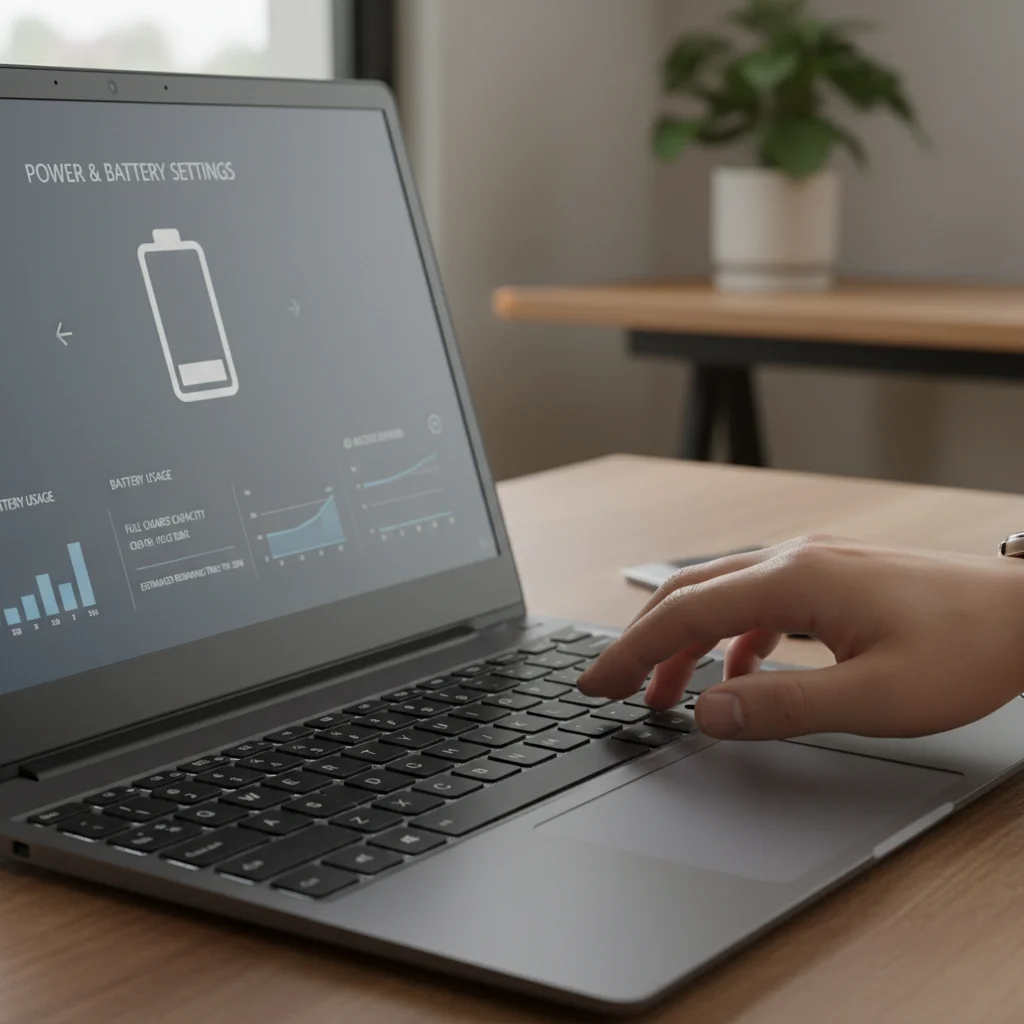
Many operating systems and third-party tools offer battery health reports that can provide insights into your battery’s capacity, cycle count, and overall condition. On Windows, you can generate a detailed battery report using the command prompt (powercfg /batteryreport). macOS provides battery health information directly in System Settings. Regularly checking these reports allows you to understand your battery’s current state and adjust your charging habits accordingly. By actively monitoring and managing your battery’s health, you not only optimize laptop battery performance in the short term but also extend its useful lifespan, saving you money and hassle in the long run.
7. Reduce Visual Effects and Animations
Modern operating systems are rich with visual flair: transparent windows, smooth animations, shadow effects, and dynamic wallpapers. While these aesthetic enhancements contribute to a polished user experience, they also require processing power from your CPU and GPU, which in turn consumes battery life. If you’re in a situation where every minute of battery life counts, scaling back on these visual effects can provide a noticeable boost to your laptop’s endurance.
On Windows, you can adjust visual effects by searching for ‘Adjust the appearance and performance of Windows’ and choosing the ‘Adjust for best performance’ option or manually disabling specific effects. On macOS, reducing transparency and motion in Accessibility settings can help. Disabling animated wallpapers or live backgrounds and opting for static, dark backgrounds can also contribute to power savings. While the impact of any single visual effect might seem minor, their cumulative effect can be significant. Prioritizing functionality over aesthetics, even temporarily, is a smart move when you need to rigorously optimize laptop battery runtime.
8. Manage Browser Tabs and Extensions
Your web browser is often the most used application on your laptop, and it can be a significant battery hog, especially with numerous tabs open and a collection of extensions running. Each open tab consumes memory and CPU resources, even if it’s in the background. Tabs playing media, refreshing content, or running complex web applications are particularly demanding. To optimize laptop battery life, develop a habit of closing tabs you’re no longer actively using.
Furthermore, browser extensions, while useful, can also be power-intensive. Many extensions run continuously in the background, consuming resources. Review your installed extensions and disable or remove any that you don’t frequently use or that seem to be consuming excessive power. Some browsers, like Google Chrome, offer built-in task managers (Shift + Esc) that can show you which tabs and extensions are using the most resources. Utilizing a browser that is known for its efficiency, such as Microsoft Edge or Safari (on macOS), can also contribute to better battery performance. By actively managing your browser environment, you can significantly optimize laptop battery usage during your internet browsing sessions.

Additional Advanced Tips for Power Users
For those looking to go even further in their quest to optimize laptop battery life, here are a few more advanced considerations:
- Undervolting (Advanced Users Only): For some CPU models, it’s possible to undervolt them, meaning you reduce the voltage supplied to the processor without affecting performance. This can lead to lower temperatures and reduced power consumption. However, this is an advanced technique that requires careful research and can potentially cause system instability if not done correctly. Proceed with caution and at your own risk.
- SSD vs. HDD: If your laptop still uses a traditional Hard Disk Drive (HDD), upgrading to a Solid State Drive (SSD) can significantly improve battery life. SSDs consume less power, generate less heat, and are much faster, leading to a more efficient system overall.
- Temperature Management: Excessive heat is detrimental to battery health and can cause components to work harder, thus consuming more power. Ensure your laptop’s vents are clear and consider using a cooling pad if you frequently experience high temperatures during intensive tasks. Keeping your laptop cool helps to optimize laptop battery longevity.
- Battery Calibration: Periodically calibrating your battery can help the operating system get a more accurate reading of its charge level, which can prevent unexpected shutdowns and ensure you’re getting the most out of each charge cycle. Consult your laptop manufacturer’s guidelines for the proper calibration procedure.
- Use Dark Mode: For laptops with OLED screens, using dark mode in your operating system and applications can significantly save power because OLED pixels are turned off when displaying black. While less impactful on LCD screens, it can still offer minor savings and reduce eye strain.
Conclusion: Empowering Your Portable Productivity
As we navigate the demands of 2026, the ability to rely on your laptop’s battery for extended periods is no longer a luxury but a necessity. By implementing the 8 essential tips outlined in this guide – from simple adjustments like screen brightness to more nuanced strategies like power plan optimization and managing background processes – you can dramatically optimize laptop battery life and health. These practices are not just about extending runtime for a single session; they’re about fostering habits that contribute to the long-term vitality of your device’s power source.
Remember, a healthy battery is a productive battery. Regularly monitoring your battery’s health, keeping your software updated, and being mindful of your laptop’s resource consumption are all crucial steps in this optimization journey. While technology continues to advance, the fundamentals of efficient power management remain timeless. By taking proactive steps today, you empower yourself with greater flexibility, reduce the stress of constant recharging, and ensure your laptop remains a reliable companion for all your endeavors. Start applying these tips today and experience the freedom that comes with a truly optimized laptop battery.