
Mastering Software Glitches: Your 2026 Guide to 8 Persistent Issues
In the ever-evolving landscape of technology, software is the backbone of almost every operation, from personal computing to global enterprises. While advancements bring incredible capabilities, they also introduce a constant companion: the software glitch. These digital hiccups, ranging from minor annoyances to critical system failures, can disrupt workflows, cause data loss, and lead to significant frustration. This comprehensive 2026 guide is dedicated to equipping you with the knowledge and strategies for effective software glitch troubleshooting, helping you navigate and conquer 8 of the most persistent issues plaguing users today.
The year 2026 sees a sophisticated array of software applications, often integrated into complex ecosystems. This complexity, while powerful, can also be a breeding ground for unexpected behaviors. Understanding the root causes of these glitches is the first step towards resolving them. Whether you’re a seasoned IT professional or an everyday user, mastering the art of troubleshooting is an invaluable skill. This article will delve into common scenarios, provide actionable steps, and offer preventative measures to minimize future disruptions.
Understanding the Nature of Software Glitches
Before we dive into specific solutions, it’s crucial to understand what a software glitch truly is. Fundamentally, a glitch is an unexpected deviation from a program’s intended behavior. This can manifest in countless ways: an application freezing, data failing to save, an interface element not rendering correctly, or a system crashing entirely. The causes are equally diverse, including:
- Coding Errors: Bugs introduced during development, often due to logical flaws, syntax mistakes, or incorrect assumptions about user interaction or system states.
- Compatibility Issues: Software conflicting with other applications, operating system versions, or hardware configurations.
- Resource Depletion: Applications consuming excessive CPU, RAM, or storage, leading to system slowdowns or crashes.
- Corrupted Files: Essential program files or user data becoming damaged, often due to improper shutdowns, disk errors, or malware.
- Outdated Software/Drivers: Old versions lacking necessary bug fixes or optimizations for current systems.
- Network Problems: Applications failing to communicate with servers or other devices due to connectivity issues.
- Malware/Viruses: Malicious software interfering with legitimate program operations.
Effective software glitch troubleshooting relies on a systematic approach, much like a detective investigating a crime scene. You gather clues, eliminate possibilities, and test hypotheses until the culprit is identified and rectified. This guide will provide you with the tools to become that detective.
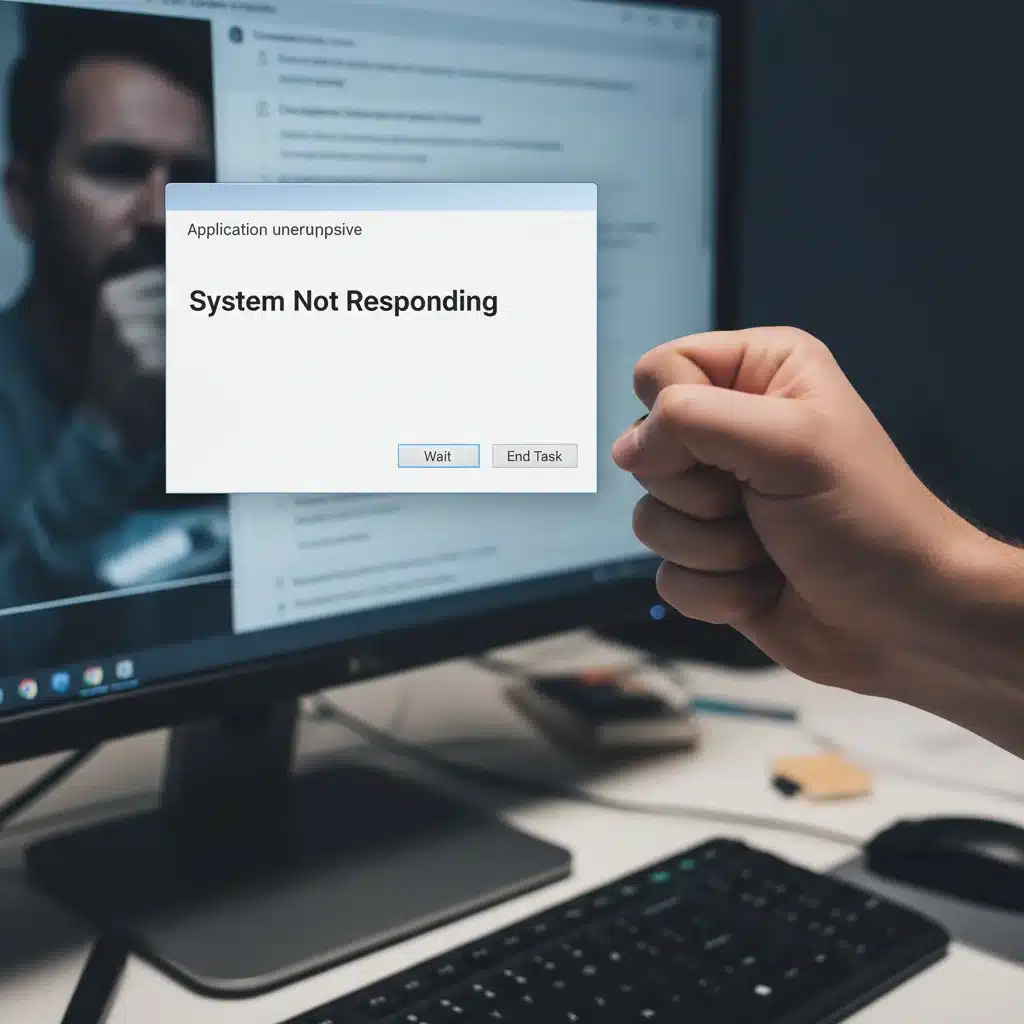
1. The Dreaded ‘Application Not Responding’ Freeze
Perhaps one of the most common and frustrating glitches is when an application simply stops responding. The cursor turns into a spinning wheel, the window greys out, and all interaction ceases. This often indicates a process has become deadlocked or is consuming too many resources. Here’s how to tackle this persistent issue:
Immediate Steps:
- Patience (Briefly): Sometimes, an application is just busy processing a large task. Give it a minute or two.
- Task Manager/Activity Monitor: On Windows, press
Ctrl+Shift+EscorCtrl+Alt+Delto open Task Manager. On macOS, useCmd+Option+Escfor Force Quit Applications, or open Activity Monitor. Locate the unresponsive application, select it, and choose ‘End Task’ (Windows) or ‘Force Quit’ (macOS). - Check for Updates: Often, freezes are known bugs that have been patched in later versions.
Deeper Software Glitch Troubleshooting:
- Resource Usage: Use Task Manager/Activity Monitor to see if the application is hogging CPU or memory. If it consistently does, it might be poorly optimized or have a memory leak.
- Conflicting Software: Sometimes, antivirus programs, firewalls, or other background applications can interfere. Try temporarily disabling them (if safe) to see if the issue resolves.
- Corrupted User Profile: For some applications, a corrupted user profile can cause instability. Try running the application under a new user account on your system.
- Reinstallation: As a last resort, a clean reinstallation of the application can resolve deeply ingrained issues. Ensure you back up any user data first.
2. Unexpected Application Crashes and Blue Screens (BSODs)
Crashes, especially the infamous Blue Screen of Death (BSOD) on Windows or kernel panics on macOS, are critical failures. They indicate a severe problem that forces the operating system to halt to prevent potential data corruption. While often hardware-related, software can be the culprit too.
Immediate Steps:
- Note Down Error Codes: BSODs usually display an error code (e.g.,
0x000000D1). Search this code online for specific solutions. - Recent Changes: Did you install new software, update drivers, or connect new hardware recently? Undo the last change if possible.
- Restart in Safe Mode: This starts your OS with minimal drivers and services, which can help isolate the problem. If the crash doesn’t occur in Safe Mode, it points to a driver or startup program.
Deeper Software Glitch Troubleshooting:
- Driver Updates: Outdated or corrupted device drivers are a primary cause of crashes. Update graphics drivers, chipset drivers, and any other critical system drivers directly from the manufacturer’s website.
- System File Checker (SFC): On Windows, run
sfc /scannowin an elevated Command Prompt to check for and repair corrupted system files. - Memory Diagnostics: Faulty RAM can cause crashes. Run a memory diagnostic tool (Windows Memory Diagnostic or MemTest86 for a more thorough check).
- Disk Check: Use
chkdsk /f /ron Windows or Disk Utility on macOS to check for and repair disk errors. - Malware Scan: A deep scan with reputable antivirus software can rule out malicious interference.
3. Slow Performance and Lagging Systems
A sluggish system isn’t always a glitch in the traditional sense, but it’s a persistent issue that severely impacts productivity. Applications take ages to open, multitasking becomes a chore, and general responsiveness plummets. This is a classic case for comprehensive software glitch troubleshooting.
Immediate Steps:
- Restart Your Computer: The oldest trick in the book often clears temporary files and resets processes.
- Close Unnecessary Programs: Many applications run in the background, consuming resources. Close anything you’re not actively using.
- Check for Updates: OS and application updates often include performance optimizations.
Deeper Software Glitch Troubleshooting:
- Startup Programs: Reduce the number of programs that launch automatically with your system. Use Task Manager (Windows) or System Settings (macOS) to manage startup items.
- Disk Space: A full hard drive can severely impact performance. Free up space by deleting unnecessary files, emptying the recycle bin, and uninstalling unused applications.
- Malware and Adware: These can run stealthily in the background, consuming resources. Perform a thorough scan.
- Defragment Hard Drive (HDD only): If you’re still using a traditional HDD, defragmenting it can improve access speeds. SSDs do not require defragmentation.
- RAM Upgrade: If your system consistently uses a high percentage of its RAM, an upgrade might be necessary for smoother operation.
- Browser Extensions: Too many browser extensions can slow down your web browsing and even your entire system. Review and remove unnecessary ones.
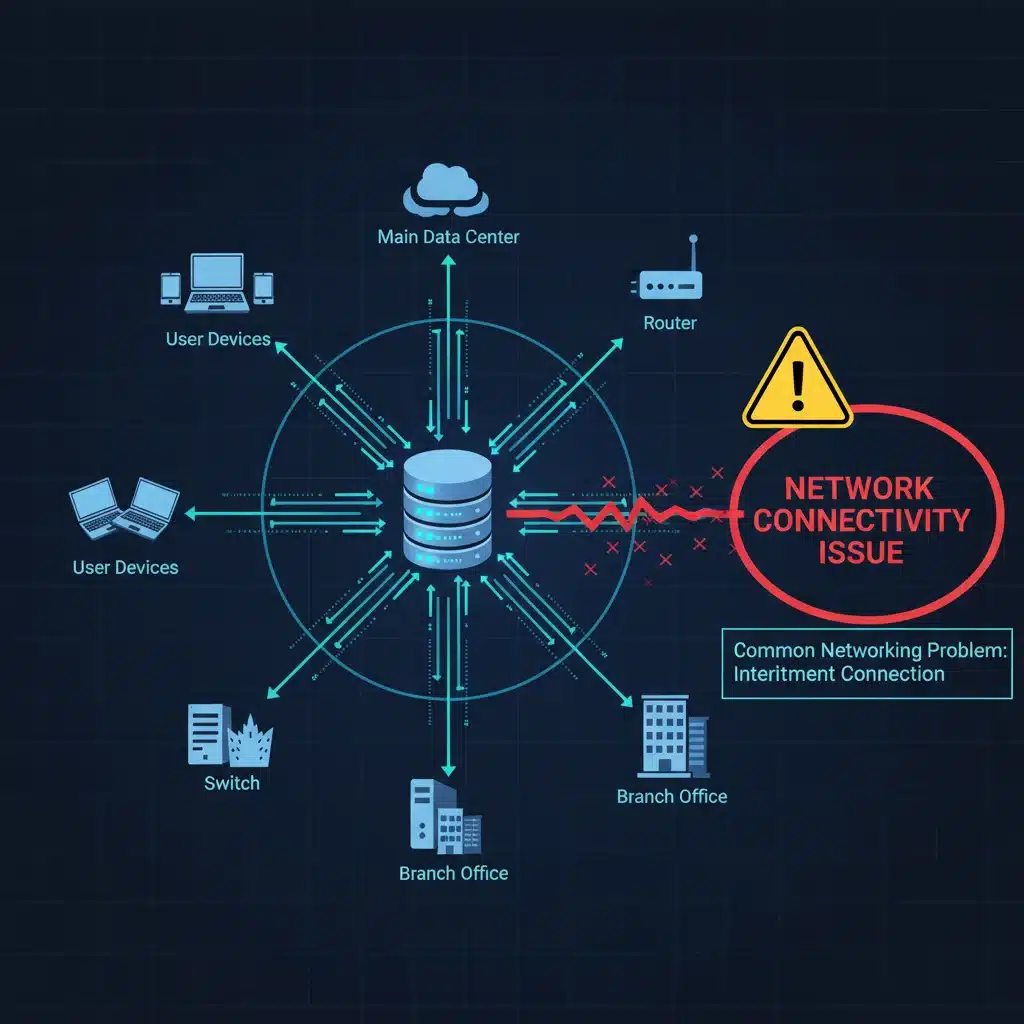
4. Network Connectivity Issues Within Applications
Your internet might be working perfectly for your browser, but a specific application struggles to connect to its servers or perform online functions. This indicates a targeted software or configuration problem.
Immediate Steps:
- Check Application Status: Visit the developer’s website or social media to see if their servers are down.
- Restart Application: Close and reopen the problematic application.
- Firewall/Antivirus: Temporarily disable your firewall or antivirus to see if it’s blocking the application’s connection. If it works, add an exception for the application.
Deeper Software Glitch Troubleshooting:
- Proxy Settings: Some applications use their own proxy settings. Check these within the application’s preferences and ensure they are correct or disabled if not needed.
- VPN Interference: If you’re using a VPN, try disabling it to see if it’s causing conflicts.
- DNS Issues: Flush your DNS cache (
ipconfig /flushdnson Windows,sudo dscacheutil -flushcache; sudo killall -HUP mDNSResponderon macOS) or try changing your DNS servers to public ones like Google DNS (8.8.8.8, 8.8.4.4). - Router/Modem Restart: A simple power cycle of your network hardware can sometimes resolve stubborn connectivity problems.
- Reinstall Network Drivers: Corrupted network drivers can cause selective connectivity issues. Reinstall them from your computer manufacturer’s website.
5. Data Corruption and File Loss
Few things are as disheartening as opening a file only to find it corrupted or, worse, discovering that saved work has vanished. While hardware failures can cause this, software glitches, especially during saving or syncing processes, are also common culprits.
Immediate Steps:
- Check Recycle Bin/Trash: It might have been accidentally deleted.
- Previous Versions/Shadow Copy: On Windows, right-click the folder containing the file, go to ‘Properties’ > ‘Previous Versions’. On macOS, use Time Machine if enabled.
- Application-Specific Recovery: Many applications (e.g., Microsoft Office, Adobe Creative Suite) have auto-save or recovery features. Check their recovery folders.
Deeper Software Glitch Troubleshooting:
- Cloud Sync Issues: If you use cloud storage (OneDrive, Google Drive, Dropbox), check their version history or ‘deleted files’ sections. Ensure your sync client is up-to-date and configured correctly.
- Disk Errors: Run
chkdsk /f /r(Windows) or Disk Utility (macOS) to repair disk errors that might be causing corruption. - Antivirus Interference: Occasionally, overzealous antivirus software can quarantine or delete legitimate files it misidentifies as threats. Check your antivirus quarantine.
- Software Bugs: Some applications have known bugs related to file saving or handling, especially with large files or specific file types. Search for known issues or updates.
- Regular Backups: The ultimate defense against data loss. Implement a robust backup strategy (local and cloud) immediately if you haven’t already.
6. Installation and Update Failures
You download a new application or an essential update, only for the installation process to fail midway, often with cryptic error messages. This can leave your system in an unstable state or prevent access to crucial features.
Immediate Steps:
- Restart Computer: A fresh start can sometimes clear temporary installation conflicts.
- Check System Requirements: Ensure your system meets the minimum requirements for the software.
- Disk Space: Verify you have enough free disk space for the installation.
Deeper Software Glitch Troubleshooting:
- Internet Connection: Ensure a stable internet connection if the installation requires downloading files.
- Antivirus/Firewall: Temporarily disable them. They can sometimes interfere with installation processes.
- Administrator Privileges: Run the installer as an administrator. Right-click the installer and select ‘Run as administrator’ (Windows) or authenticate with an admin account (macOS).
- Corrupted Installer: Redownload the installer package. The original download might have been corrupted.
- Windows Installer Service (Windows): Ensure the Windows Installer service is running (services.msc).
- Conflicting Software: Uninstall any older versions of the same software or similar applications that might conflict.
- Log Files: Many installers generate log files. These can provide valuable clues about where the installation failed.
7. Peripheral Device Malfunctions Due to Software
Your printer isn’t printing, your webcam isn’t recognized, or your external hard drive isn’t appearing. While these can be hardware issues, often the underlying problem is software-related, specifically with drivers or operating system recognition.
Immediate Steps:
- Reconnect Device: Unplug and replug the peripheral. Try a different USB port.
- Restart Computer: This can often reinitialize device detection.
- Check Device Manager (Windows) / System Information (macOS): See if the device is listed and if there are any error icons (e.g., yellow exclamation mark).
Deeper Software Glitch Troubleshooting:
- Driver Updates/Reinstallation: This is the most common fix. Go to the manufacturer’s website, download the latest drivers for your specific OS version, and install them. If already installed, try uninstalling the existing driver first, then reinstalling.
- Operating System Updates: Sometimes, OS updates include patches for better peripheral compatibility.
- Firmware Updates: For some complex peripherals (e.g., high-end printers, docking stations), firmware updates might be available from the manufacturer.
- USB Selective Suspend (Windows): In Power Options, check if USB selective suspend is enabled. Disabling it can help with devices that randomly disconnect.
- Test on Another Computer: If possible, test the peripheral on another computer to rule out a hardware failure of the device itself.
8. Browser Performance Issues and Web Application Glitches
Web browsers are complex software applications, and web applications running within them can also develop their own set of glitches. Slow loading times, unresponsive scripts, incorrect rendering, or features not working are all common.
Immediate Steps:
- Refresh Page: A simple refresh (
F5orCmd+R) can often resolve temporary loading issues. - Clear Cache and Cookies: Accumulated browser data can cause conflicts and slow down performance. Clear them regularly.
- Try Incognito/Private Mode: This disables extensions and uses a clean session, helping to identify if an extension is the culprit.
Deeper Software Glitch Troubleshooting:
- Disable Extensions: Systematically disable browser extensions one by one to find a problematic one.
- Update Browser: Ensure your browser is always up-to-date. Developers constantly release patches and performance improvements.
- Hardware Acceleration: Try enabling or disabling hardware acceleration in your browser settings. Sometimes, it can cause rendering issues with specific graphics cards.
- Reset Browser Settings: Many browsers have an option to reset settings to their default state, which can resolve deep-seated configuration issues.
- Test Another Browser: If the issue is specific to one browser, try another (e.g., Chrome, Firefox, Edge, Safari) to see if the web application works there. This helps determine if the problem is browser-specific or application-wide.
- Check Developer Console: For more advanced users, the browser’s developer console (
F12) can often show JavaScript errors or network issues specific to the web application.
General Best Practices for Preventing Software Glitches
While software glitch troubleshooting is essential, prevention is always better than cure. Adopting these habits can significantly reduce the frequency and severity of problems:
- Keep Software Updated: Regularly update your operating system, applications, and drivers. Updates often contain crucial bug fixes and security patches.
- Install Reputable Software: Download applications only from trusted sources to avoid malware and poorly coded programs.
- Monitor System Resources: Keep an eye on CPU, RAM, and disk usage. If consistently high, investigate the cause.
- Regular Backups: Implement a robust backup strategy for all important data. This is your safety net against corruption and loss.
- Maintain Disk Health: Periodically run disk checks and ensure you have sufficient free disk space.
- Use Antivirus/Anti-Malware: Keep your security software updated and perform regular scans.
- Restart Regularly: A simple restart can clear temporary files and memory leaks, keeping your system fresh.
- Document Issues: Keep a record of when issues occur, what you were doing, and any error messages. This helps in future troubleshooting.
The Future of Software Glitch Troubleshooting in 2026 and Beyond
As we move further into 2026, artificial intelligence and machine learning are increasingly being integrated into diagnostic tools and operating systems. Predictive analytics can identify potential issues before they manifest, and AI-powered assistants are becoming more adept at guiding users through complex troubleshooting steps. Self-healing software and more robust error correction mechanisms are also on the horizon. However, human understanding and a systematic approach to problem-solving will always remain crucial.
The principles of software glitch troubleshooting – identifying symptoms, isolating variables, testing solutions, and documenting findings – remain timeless. While the tools evolve, the methodology endures. By staying informed and proactive, you can minimize downtime and ensure your digital life runs as smoothly as possible.
Conclusion
Software glitches are an unavoidable part of our digital existence. However, they don’t have to be roadblocks. With the strategies outlined in this 2026 guide, you are now better equipped to diagnose and resolve 8 of the most persistent software issues. From frozen applications to network woes and data corruption, a systematic approach combined with preventative measures will empower you to maintain a healthy and efficient computing environment. Remember, every glitch is an opportunity to learn and refine your troubleshooting skills, making you a more resilient and effective technology user.