Mastering Password Managers: A 4-Step Setup for Ironclad Digital Security
Mastering Password Managers: A 4-Step Setup for Ironclad Digital Security
In an increasingly interconnected world, our digital lives are woven into almost every aspect of our daily existence. From online banking and social media to work platforms and personal email, we interact with countless websites and services, each demanding a unique set of credentials. The sheer volume of passwords required can be overwhelming, leading many to resort to risky practices like reusing simple passwords or jotting them down on sticky notes. This, however, leaves us vulnerable to sophisticated cyber threats that are constantly evolving. The solution? A robust password manager setup.
A password manager is more than just a digital vault; it’s your first line of defense in the complex landscape of cybersecurity. It automates the process of creating, storing, and managing strong, unique passwords for all your online accounts, significantly reducing your risk of falling victim to data breaches, phishing attacks, and identity theft. But simply installing one isn’t enough. To truly harness its power and achieve ironclad digital security, you need to set it up correctly and integrate it seamlessly into your digital workflow. This comprehensive guide will walk you through a 4-step process to ensure your password manager setup is not just functional, but optimally secure and efficient.
We’ll delve into everything from choosing the right manager for your needs to mastering its advanced features, ensuring you gain confidence and peace of mind in your online interactions. By the end of this guide, you’ll have a fully optimized password management system that safeguards your digital identity with unparalleled strength.
Step 1: Choosing the Right Password Manager for Your Needs
The first and arguably most critical step in establishing an effective password manager setup is selecting the right tool. The market is saturated with options, each boasting unique features, pricing models, and security protocols. Making an informed decision requires understanding your personal or organizational needs and evaluating potential candidates against a set of key criteria.
Key Considerations for Selection:
- Security Architecture: This is paramount. Look for managers that employ strong encryption standards (like AES-256), zero-knowledge architecture (meaning even the provider cannot access your vault), and robust auditing practices. Transparency in their security whitepapers and independent audits is a strong indicator of trustworthiness.
- Ease of Use and Interface: A password manager, no matter how secure, is useless if it’s too complicated to use. A clean, intuitive interface that integrates smoothly with your browsers and devices is essential for consistent adoption. Look for features like autofill, auto-save, and easy search functionality.
- Cross-Platform Compatibility: In today’s multi-device world, your password manager should work seamlessly across all your platforms – Windows, macOS, Linux, iOS, Android, and various web browsers. This ensures you always have access to your credentials, regardless of the device you’re using.
- Features Beyond Passwords: Many modern password managers offer more than just password storage. Consider features like secure notes for sensitive information, digital wallet for credit card details, secure file storage, identity theft monitoring, and secure sharing capabilities for families or teams.
- Pricing Model: Most reputable password managers offer a free tier with basic functionalities, while premium versions unlock advanced features. Evaluate whether the free version meets your needs or if the additional features of a paid subscription are worth the investment for enhanced security and convenience.
- Customer Support and Community: Good customer support can be invaluable when you encounter issues or have questions. Check for responsive support channels, extensive knowledge bases, and active user communities.
Top Contenders in the Market:
While personal preference plays a role, some password managers consistently receive high marks for their balance of security, features, and usability. Popular choices include:
- LastPass: Known for its user-friendly interface and robust feature set, including secure notes, form filling, and dark web monitoring.
- 1Password: Praised for its strong security, intuitive design, and excellent family/team sharing options.
- Bitwarden: A popular open-source option, offering excellent security and a generous free tier, making it a favorite for privacy-conscious users.
- Dashlane: Offers a comprehensive suite of features, including VPN and dark web monitoring, alongside strong password management.
- Keeper Security: Enterprise-grade security features, making it suitable for both individuals and businesses.
Before committing, take advantage of free trials to test out a few options. Experience them on your primary devices and browsers to ensure they fit your workflow. Remember, the best password manager is the one you’ll actually use consistently.
Step 2: Initial Setup and Configuration of Your Digital Vault
Once you’ve chosen your password manager, the next crucial step in your password manager setup is the initial installation and configuration. This involves not only installing the software but also understanding and setting up its core functionalities to maximize security and convenience.
Installation Across Devices:
Begin by installing the password manager’s application on all your primary devices: your desktop computer, laptop, smartphone, and tablet. Most managers offer dedicated apps for each operating system. Don’t forget to install the browser extensions for all browsers you use regularly (Chrome, Firefox, Edge, Safari, etc.). These extensions are vital for autofill capabilities and seamless integration.
Creating Your Master Password:
This is the single most important password you will ever create. Your master password is the key to your entire digital vault, and its strength directly impacts the security of all your stored credentials. It must be:
- Long and Complex: Aim for at least 16 characters, combining uppercase and lowercase letters, numbers, and special symbols.
- Unique: Never use a master password you’ve used anywhere else, ever.
- Memorable (to you): While complex, it should be something you can recall without writing down. Consider a passphrase – a sequence of unrelated words – which can be long and strong but easier to remember.
Warning: If you forget your master password, you will likely lose access to your entire vault. Most password managers offer no recovery mechanism for security reasons (zero-knowledge architecture). Write it down on a piece of paper and store it securely offline, perhaps in a safe or a locked drawer, as a last resort.
Importing Existing Passwords (with Caution):
Many password managers offer an import feature to pull existing passwords from your browser’s saved passwords or from other password managers. While convenient, exercise caution:
- Browser Passwords: Browsers often store passwords with weaker encryption. Importing them means bringing potentially compromised or weak passwords into your secure vault.
- Review and Update: After importing, go through each entry. Any password that is weak, reused, or old should be immediately updated to a strong, unique password generated by your new password manager. This is a critical step in a robust password manager setup.
Step 3: Populating Your Vault and Enhancing Security Features
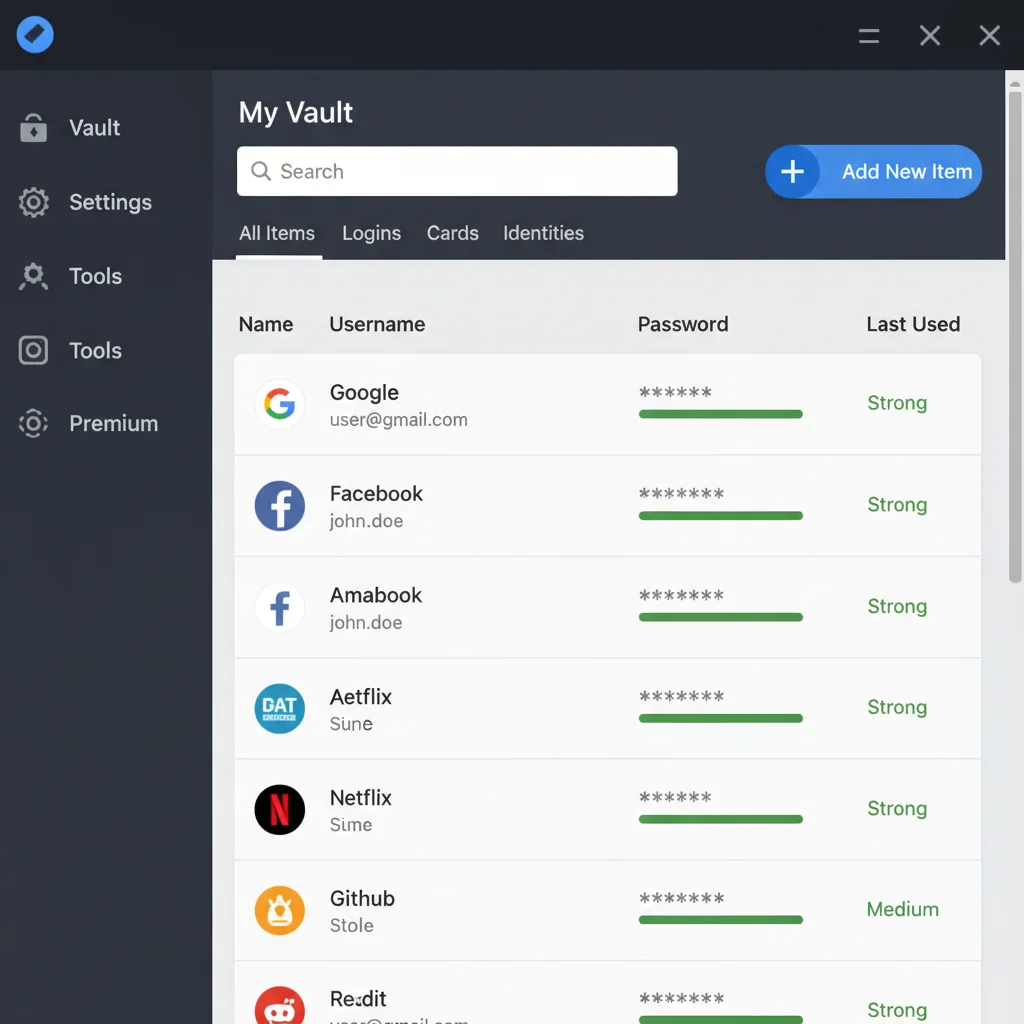
With the basic installation complete, the next phase of your password manager setup involves populating your vault with new, strong credentials and activating crucial security enhancements. This is where you transform a mere application into an impregnable fortress for your digital identity.
Generating Strong, Unique Passwords:
The core benefit of a password manager is its ability to generate highly complex, random passwords that are virtually impossible to guess or crack. For every new account you create, use your password manager’s built-in generator to create a password that is:
- Long: At least 16 characters, but ideally longer (20+).
- Random: A mix of uppercase and lowercase letters, numbers, and special characters.
- Unique: Never reuse a password, even for seemingly unimportant accounts.
For existing accounts, systematically go through your imported passwords (or accounts you use frequently) and update them one by one using the password generator. This process can be time-consuming initially, but it’s a one-time investment that dramatically elevates your security posture. Prioritize critical accounts first: banking, email, cloud storage, and social media.
Enabling Two-Factor Authentication (2FA/MFA):
Beyond strong passwords, 2FA (or multi-factor authentication, MFA) adds an extra layer of security by requiring a second verification method in addition to your password. Even if your master password (or an individual site password) is compromised, an attacker still needs this second factor to gain access. Most password managers integrate seamlessly with 2FA, and many even offer built-in 2FA authenticator capabilities (e.g., storing TOTP codes).
Enable 2FA for:
- Your Password Manager Itself: This is non-negotiable. Use an authenticator app (like Google Authenticator, Authy, or your password manager’s built-in authenticator) or a hardware key (like YubiKey) for maximum protection.
- All Your Critical Online Accounts: Especially email, banking, social media, and any service containing sensitive personal information.
Utilizing Secure Notes and Custom Fields:
Password managers aren’t just for passwords. Use secure notes to store other sensitive information you’d otherwise write down or keep in unsecured digital files. This could include:
- Software license keys
- Wi-Fi passwords for your home network
- Passport numbers or other identification details (though be cautious with extremely sensitive info)
- PINs (for non-banking accounts)
Many managers also allow custom fields, letting you add additional relevant information to each login entry, such as security questions and answers (though it’s often better to generate random answers and store them as secure notes).
Step 4: Maintaining Your Password Manager and Best Practices
A secure password manager setup isn’t a one-time task; it requires ongoing maintenance and adherence to best practices to remain effective. Regular reviews and proactive habits ensure your digital fortress stays strong against evolving threats.
Regular Security Audits:
Most password managers include a built-in security audit or health check feature. This tool scans your vault for:
- Weak Passwords: Passwords that are too short or simple.
- Reused Passwords: Passwords used across multiple accounts.
- Compromised Passwords: Passwords found in known data breaches (often checked against databases like ‘Have I Been Pwned?’).
Make it a habit to run these audits regularly – at least once a month. Prioritize fixing any identified vulnerabilities immediately. This proactive approach is a cornerstone of effective password manager setup maintenance.
Keeping Software Updated:
Ensure your password manager application and browser extensions are always up to date. Developers frequently release updates that include security patches, bug fixes, and new features. Running outdated software can expose you to known vulnerabilities that attackers could exploit.
Practicing Good Digital Hygiene:
- Be Wary of Phishing: Even with a password manager, you are still susceptible to phishing attacks. Always verify the URL of a website before entering credentials. Your password manager’s autofill should only work on the correct, verified domain. If it doesn’t autofill, it’s a red flag.
- Delete Unused Accounts: Periodically review your online accounts and delete any that you no longer use. This reduces your digital footprint and minimizes potential points of entry for attackers.
- Secure Your Recovery Options: If your password manager offers recovery options (e.g., a recovery code or emergency access), ensure these are set up and stored securely, separate from your master password.
- Educate Yourself: Stay informed about the latest cybersecurity threats and best practices. The more knowledgeable you are, the better equipped you’ll be to protect yourself.

Advanced Tips for Maximizing Your Password Manager’s Potential
Beyond the fundamental password manager setup, there are several advanced strategies and features you can leverage to further enhance your digital security and streamline your online experience.
Secure Sharing for Families and Teams:
Many premium password managers offer secure sharing capabilities. This allows you to safely share login credentials, secure notes, or other sensitive information with trusted family members or colleagues without exposing the data. This is particularly useful for shared accounts like streaming services, utility bills, or team-specific software logins. Ensure you understand the permissions and revocation options when sharing.
Emergency Access:
Consider setting up emergency access for trusted individuals. In the event of an unforeseen circumstance, this feature allows designated contacts to gain access to your vault after a specified waiting period. This ensures your loved ones can access critical information if you’re incapacitated, without compromising your immediate security. Carefully choose your emergency contacts and ensure they understand their role.
Identity and Payment Information Storage:
Beyond passwords, your manager can securely store other sensitive data. This includes:
- Credit Card Information: For faster and more secure online shopping, your password manager can autofill credit card details without you manually typing them. This reduces the risk of keyloggers.
- Personal Information for Form Filling: Store your name, address, phone number, and email. Your manager can then autofill these details into online forms, saving time and reducing typing errors.
Always review what is being autofilled before confirming, especially on new or unfamiliar websites.
Using Aliases and Unique Email Addresses:
Some password managers integrate with services that allow you to generate unique email aliases for each online account (e.g., iCloud Hide My Email, DuckDuckGo Email Protection). This prevents companies from correlating your accounts across different services and reduces spam. If one alias is compromised, it doesn’t affect your primary email address or other accounts.
Monitoring for Data Breaches:
Many advanced password managers include features that monitor the dark web for your email addresses and notify you if your credentials appear in a data breach. This proactive alert allows you to quickly change compromised passwords, significantly mitigating the risk of identity theft or account takeover. This is a crucial component of a comprehensive password manager setup.
The Future of Password Management: Passwordless Authentication
While mastering your password manager setup is crucial for current digital security, the industry is gradually moving towards a passwordless future. Technologies like FIDO (Fast Identity Online) standards, biometrics (fingerprint, facial recognition), and passkeys are gaining traction. Passkeys, in particular, promise a more secure and convenient alternative to traditional passwords by leveraging cryptographic keys stored on your devices.
Even with the advent of passwordless authentication, password managers will continue to play a vital role. They are evolving to support passkeys, manage biometric registrations, and serve as central hubs for your various authentication methods. Therefore, investing time in a robust password manager today prepares you for the security landscape of tomorrow.
Conclusion: Your Ironclad Digital Fortress Awaits
Establishing an effective password manager setup is no longer optional; it’s a fundamental requirement for anyone navigating the digital world. By following these four comprehensive steps – choosing wisely, configuring meticulously, populating securely, and maintaining diligently – you transform a potentially vulnerable digital life into an ironclad fortress.
Embrace the power of strong, unique passwords for every account. Leverage two-factor authentication for critical services. Utilize your manager’s advanced features for secure sharing and identity protection. And make regular security audits a non-negotiable part of your digital routine. The peace of mind that comes from knowing your online identity is robustly protected is invaluable. Start your journey towards a safer, more streamlined digital experience today by perfecting your password manager setup.