Cloud Storage 2026: Your First 100GB Setup Guide

In an increasingly digital world, managing our ever-growing collection of photos, documents, videos, and other files can feel like an overwhelming task. Hard drives crash, phones get lost, and the sheer volume of data we generate daily demands a more robust and reliable solution than traditional local storage. This is where cloud storage steps in, offering a flexible, secure, and accessible way to keep your digital life organized and protected. As we look towards 2026, cloud storage has evolved into an indispensable tool for individuals and businesses alike.
For beginners, the idea of entrusting your precious data to a ‘cloud’ can seem a bit abstract, even daunting. However, understanding the fundamentals and learning how to set up your first 100GB of cloud storage is far simpler than you might imagine. This comprehensive guide is designed to demystify the process, walking you through every step from choosing the right provider to implementing best practices for security and organization. By the end of this article, you’ll be well-equipped to leverage the full potential of cloud storage, ensuring your digital assets are safe, sound, and accessible from anywhere, at any time.
What is Cloud Storage? A Foundation for Your Digital Future
Before we dive into the practicalities of cloud storage setup, let’s clarify what it actually is. Simply put, cloud storage refers to a model of computer data storage in which digital data is stored in logical pools. The physical storage spans multiple servers, and the physical environment is typically owned and managed by a hosting company. These cloud storage providers are responsible for keeping the data available and accessible, and the physical environment protected and running. Users access their data through a web interface, a desktop application, or a mobile app, meaning your files are no longer tied to a single device.
The Benefits of Embracing Cloud Storage
- Accessibility: Access your files from any device, anywhere, as long as you have an internet connection. This is a game-changer for remote work, travel, and seamless device switching.
- Data Protection & Backup: Cloud providers employ robust backup strategies, often mirroring your data across multiple servers. This significantly reduces the risk of data loss due to hardware failure, theft, or accidental deletion. It’s your ultimate digital safety net.
- Cost-Effectiveness: While premium tiers come with a fee, many providers offer a generous amount of free storage (often 5GB to 15GB) to get you started. For larger needs, subscription costs are often more economical than continually upgrading physical storage devices.
- Scalability: Need more space? Most cloud storage providers allow you to easily upgrade your plan, providing unparalleled scalability without needing to buy new hardware.
- Collaboration: Share files and folders with others, allowing for real-time collaboration on documents, presentations, and projects. This is particularly valuable for teams and families.
- Reduced Device Clutter: Free up valuable space on your computer, smartphone, and tablet by offloading files to the cloud.
Understanding these benefits lays the groundwork for appreciating why a proper cloud storage setup is not just a convenience but a necessity in 2026.
Choosing Your Cloud Storage Provider: The First Critical Step
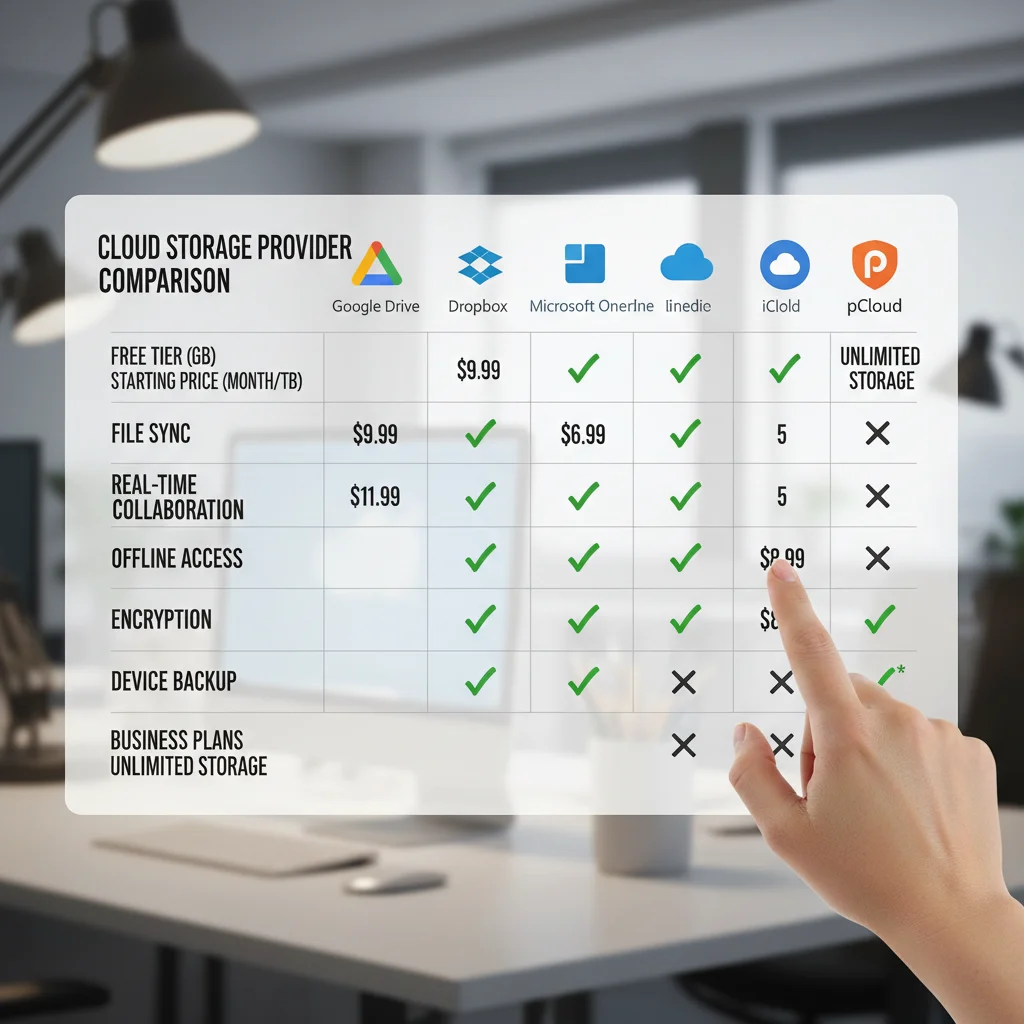
With numerous cloud storage providers vying for your attention, selecting the right one can feel daunting. Each platform offers a unique blend of features, pricing structures, and user experiences. For your first 100GB of cloud storage, it’s essential to consider factors that align with your primary needs. Here’s a breakdown of popular options and what to look for:
Top Cloud Storage Contenders for 2026
- Google Drive: Seamlessly integrated with the Google ecosystem (Gmail, Docs, Photos), Google Drive offers 15GB of free storage. It’s excellent for collaboration and widely compatible. Paid plans (Google One) are competitive.
- Dropbox: Known for its simplicity and ease of use, Dropbox is a veteran in the cloud storage space. It offers 2GB free, with robust sharing and syncing capabilities.
- Microsoft OneDrive: Ideal for Windows users and those heavily invested in Microsoft Office 365, OneDrive provides 5GB of free storage. Its integration with Windows Explorer is particularly smooth.
- Apple iCloud: The go-to choice for Apple device users, iCloud offers 5GB free and deep integration with iOS and macOS. It’s perfect for backing up photos, contacts, and device settings.
- Mega: Known for its strong emphasis on privacy and end-to-end encryption, Mega offers a generous 20GB of free storage. It’s a solid option if security is your absolute top priority.
- Sync.com: Another privacy-focused provider, Sync.com offers end-to-end encryption and zero-knowledge architecture. It provides 5GB free and is a strong contender for sensitive data.
Key Factors to Consider When Choosing
- Storage Amount: While we’re aiming for 100GB, consider if you’ll need more in the future. Check the pricing tiers for larger capacities.
- Pricing & Free Tiers: Compare monthly/annual costs for the 100GB (or similar) tier. Don’t overlook the free storage offerings to get started.
- Security & Privacy: Look for features like two-factor authentication (2FA), end-to-end encryption, and zero-knowledge encryption. Understand their data retention and privacy policies.
- Ease of Use: A user-friendly interface, intuitive file organization, and smooth syncing across devices are crucial for a positive experience.
- Integration: Does it integrate well with your existing operating system (Windows, macOS, Linux) and other apps you use daily (Microsoft Office, Google Workspace)?
- File Sharing & Collaboration: How easy is it to share files, set permissions, and collaborate with others?
- Device Compatibility: Ensure the provider offers apps for all your devices (desktop, mobile, tablet).
- Bandwidth & Speed: While hard to quantify before signing up, look for reviews regarding upload/download speeds.
For your initial 100GB cloud storage setup, a balanced approach considering these factors will lead you to the best provider for your needs. Don’t be afraid to try out free tiers from a few providers before committing to a paid plan.
Setting Up Your First 100GB: A Step-by-Step Guide to Cloud Storage Setup
Once you’ve chosen your preferred cloud storage provider, the actual cloud storage setup process is straightforward. We’ll outline the general steps, which are largely similar across most major platforms.
Step 1: Sign Up and Create Your Account
- Visit the Provider’s Website: Navigate to the official website of your chosen cloud storage provider (e.g., drive.google.com, dropbox.com, onedrive.live.com).
- Click ‘Sign Up’ or ‘Get Started’: Locate the registration button. You’ll typically need an email address and to create a strong password.
- Complete Registration: Follow the prompts to enter your details. If you’re using a service like Google Drive or OneDrive, you might already have an account through your Google or Microsoft login.
- Enable Two-Factor Authentication (2FA): This is CRUCIAL for security. Most providers will prompt you to set this up during registration or in the security settings. It adds an extra layer of protection by requiring a second verification method (like a code from your phone) in addition to your password.
Step 2: Choose Your Plan (for 100GB)
- Review Storage Plans: After signing up, you’ll likely be on the free tier. Navigate to the ‘Upgrade’ or ‘Storage’ section of your account.
- Select a 100GB Plan: Find the plan that offers approximately 100GB (or more, if you foresee needing it soon). This might be labeled as 100GB, 200GB, or even 1TB (which is 1000GB) for many providers.
- Enter Payment Information: Follow the instructions to complete the payment process for your chosen plan.
Step 3: Install Desktop and Mobile Applications
While you can access your cloud storage through a web browser, the dedicated desktop and mobile applications offer a far superior experience, enabling seamless syncing and integration with your devices.
- Download Desktop App: On your computer, look for a ‘Download’ section or a link to download the desktop application. Install it like any other software.
- Log In to Desktop App: Once installed, launch the app and log in with your new cloud storage credentials.
- Set Up Sync Folder: The desktop app will usually create a dedicated folder on your computer (e.g., ‘Google Drive’, ‘Dropbox’, ‘OneDrive’). Any files you place in this folder will automatically sync to the cloud and across all your linked devices.
- Download Mobile App: Search for the provider’s app in your smartphone’s app store (App Store for iOS, Google Play Store for Android).
- Log In to Mobile App: Open the mobile app and log in. This will give you instant access to your files on the go.
Step 4: Start Uploading and Syncing Your Files
Now that your cloud storage setup is complete, it’s time to move your files!
- Drag and Drop: The easiest way to upload files from your computer is to simply drag them into the dedicated sync folder created by the desktop app.
- Web Interface Upload: You can also log into the web interface and use the ‘Upload’ button to select files or folders from your computer.
- Mobile Uploads: Most mobile apps allow you to automatically back up photos and videos from your device. You can also manually upload specific files.
- Organize as You Go: Create a logical folder structure within your cloud storage. Treat it like a digital filing cabinet.
Congratulations! You’ve successfully completed your initial cloud storage setup and are now ready to enjoy the benefits of secure, accessible data.
Organizing Your Digital Life: Making the Most of Your 100GB
Having 100GB of cloud storage is a great start, but effective organization is key to truly benefiting from it. Without a system, your cloud can quickly become a digital junk drawer. Here’s how to keep things tidy and efficient:
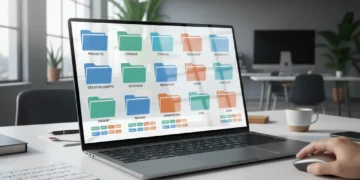
Develop a Consistent Folder Structure
Think about how you categorize your life. Common top-level folders include:
- Documents: For work, personal, financial, and educational papers.
- Photos & Videos: Dated folders (e.g., ‘2025_Vacation’, ‘2026_FamilyEvents’) or categorized by event.
- Projects: For ongoing tasks, hobbies, or creative endeavors.
- Software & Backups: Installer files, configuration backups, etc.
- Shared: A dedicated folder for files you frequently share with others.
The important thing is consistency. Stick to a naming convention and folder hierarchy that makes sense to you.
Utilize Tags and Metadata
Many cloud providers offer tagging features. Use these to add keywords to your files, making them easier to find through search, even if they’re buried deep in a folder. For example, a photo of your pet could be tagged ‘pet’, ‘dog’, ‘Max’, ‘park’.
Regularly Review and Prune
Set a schedule (monthly or quarterly) to review your cloud storage. Delete old, unnecessary files, consolidate duplicates, and ensure everything is where it should be. This prevents clutter and helps you stay within your storage limits.
Leverage Sync Settings Wisely
Most desktop apps allow you to choose which folders to sync to your local device. This is crucial for managing local storage space. You might want to keep frequently accessed work documents synced locally, but keep old photo archives cloud-only.
Automate Backups
For critical files like photos and documents, configure your cloud service to automatically back them up. Many mobile apps can auto-upload photos, and desktop apps can monitor specific folders for changes.
Ensuring Cloud Security and Privacy in 2026
While cloud providers invest heavily in security, your actions play a significant role in protecting your data. Security is paramount, especially when dealing with your personal and sensitive information in your cloud storage setup.
Strong Passwords and 2FA are Non-Negotiable
- Unique, Complex Passwords: Never reuse passwords. Use a password manager to generate and store strong, unique passwords for each online service, especially your cloud storage.
- Two-Factor Authentication (2FA): As mentioned, enable 2FA immediately. This adds a critical layer of security, making it exponentially harder for unauthorized users to access your account, even if they somehow get your password.
Understand Encryption
- In Transit vs. At Rest: Most providers encrypt your data ‘in transit’ (as it travels from your device to their servers) and ‘at rest’ (while it’s stored on their servers).
- End-to-End Encryption (E2EE): For ultimate privacy, consider providers offering end-to-end encryption. This means only you (and those you share with) hold the keys to decrypt your data. The provider itself cannot access it. Mega and Sync.com are examples of E2EE providers.
Be Mindful of Sharing Practices
- Granular Permissions: When sharing files or folders, always use the most restrictive permissions necessary. Share with specific people rather than generating public links if possible.
- Expiry Dates: If available, set expiry dates for shared links to automatically revoke access after a certain period.
- Password Protect Shared Links: For sensitive shares, add a password to the shared link.
Beware of Phishing and Scams
Cybercriminals often target cloud users with phishing emails designed to steal login credentials. Always verify the sender and the legitimacy of links before clicking. If in doubt, navigate directly to your cloud provider’s website.
Regularly Review Account Activity
Many cloud services provide a log of recent activity, showing when and where your account was accessed. Periodically check this for any suspicious logins.

Advanced Tips for Cloud Storage Optimization in 2026
Once you’re comfortable with your basic cloud storage setup, you can explore more advanced techniques to optimize your experience and get the most out of your 100GB and beyond.
Selective Sync for Local Storage Management
As mentioned briefly, selective sync is a powerful feature. For example, if you have a 1TB cloud plan but only a 256GB SSD on your laptop, you can choose to only sync essential folders to your local drive, keeping less frequently accessed archives strictly in the cloud. This saves valuable local disk space while still providing cloud access to all your files.
Version History and File Recovery
Most reputable cloud providers offer version history, allowing you to revert to previous versions of a file. This is invaluable if you accidentally save over a document or need to recover an earlier draft. Understand how long your provider retains version history and deleted files (often in a ‘trash’ or ‘recycle bin’ that needs to be manually emptied).
Integrating with Other Applications
Many productivity apps, photo editors, and creative suites offer direct integration with cloud storage services. This allows you to open, edit, and save files directly from your cloud, streamlining your workflow and reducing the need to download and re-upload files.
Utilizing Offline Access
For files you need to access without an internet connection (e.g., during a flight or in an area with poor reception), most cloud apps allow you to mark specific files or folders for offline access. These files will be downloaded and stored locally on your device.
Bandwidth Management
If you have a slower internet connection or limited data, be aware of large uploads or sync operations. Many desktop cloud apps allow you to throttle bandwidth usage during certain times or cap upload/download speeds to prevent them from monopolizing your internet connection.
Considering a Hybrid Approach
For ultimate data resilience, some users adopt a hybrid approach: using cloud storage for active files and sharing, while also maintaining local backups on an external hard drive for critical archives. This ‘3-2-1 backup strategy’ (3 copies of your data, on 2 different media, with 1 copy offsite) offers the highest level of protection.
Troubleshooting Common Cloud Storage Issues
Even with the best cloud storage setup, you might encounter minor hiccups. Here are some common issues and their solutions:
Files Not Syncing
- Check Internet Connection: Ensure your device has a stable internet connection.
- Cloud Service Status: Check the provider’s status page (e.g., Google Workspace Status Dashboard, Dropbox Status) for any ongoing outages.
- Storage Space: Verify you haven’t exceeded your storage limit.
- File Naming Issues: Some characters or very long file names can cause sync problems. Avoid special characters like
/ \ : * ? " < > |. - Firewall/Antivirus: Ensure your firewall or antivirus software isn’t blocking the cloud app’s connection.
- Restart App/Device: A simple restart of the cloud application or your computer/phone can often resolve minor glitches.
Slow Upload/Download Speeds
- Internet Speed: Test your internet speed. If it’s generally slow, that’s the primary culprit.
- Bandwidth Throttling: Check if you’ve set any bandwidth limits in your cloud app settings.
- Time of Day: Peak internet usage hours can affect speeds. Try uploading/downloading during off-peak times.
- Server Load: While rare for major providers, high server load can occasionally impact speeds.
Lost or Deleted Files
- Check Trash/Recycle Bin: Most cloud services have a trash or deleted items folder where files are kept for a period before permanent deletion.
- Version History: If a file was overwritten, check its version history to restore an older copy.
- Contact Support: If you’ve exhausted all options, contact your cloud provider’s customer support. They might be able to recover data from their backups.
The Future of Cloud Storage Beyond 2026
The landscape of cloud storage is constantly evolving. Beyond 2026, we can anticipate even more sophisticated features and integrations:
- AI-Powered Organization: More advanced AI will likely categorize, tag, and even summarize your files automatically, making retrieval effortless.
- Enhanced Security with Blockchain: Decentralized cloud storage solutions leveraging blockchain technology could become more mainstream, offering unprecedented levels of security and privacy.
- Seamless AR/VR Integration: As augmented and virtual reality become more prevalent, cloud storage will be crucial for streaming and managing large AR/VR assets directly, enabling immersive experiences.
- Edge Computing Synergy: Cloud storage will increasingly work in tandem with edge computing, where data processing happens closer to the source, reducing latency and improving real-time access for IoT devices.
- Sustainable Cloud Practices: Expect a greater emphasis on energy-efficient data centers and renewable energy sources as providers strive for more sustainable operations.
Your journey into cloud storage with your first 100GB is just the beginning. The foundational knowledge and practices you establish now will serve you well as these technologies continue to advance.
Conclusion: Your Digital Freedom Starts Here
Embracing cloud storage is no longer a luxury but a fundamental component of modern digital life. By following this beginner’s guide, you’ve learned how to choose the right provider, execute a proper cloud storage setup for your first 100GB, and implement best practices for organization and security. You’ve unlocked the power of accessibility, data protection, and seamless collaboration, transforming how you interact with your digital assets.
Remember that the key to a successful cloud storage experience lies in consistent organization, vigilance regarding security, and a willingness to adapt as technology evolves. Whether you’re safeguarding precious family photos, managing critical work documents, or collaborating on creative projects, your cloud storage setup is now a robust foundation for your digital future. Take control of your data, free up your devices, and enjoy the peace of mind that comes with knowing your digital world is secure and accessible, wherever life takes you.